What is on every screen
Real screens from RateCaddy v2.0 with each control called out. If you want the task-by-task version, see the tutorials.
Home
One screen answers "where am I going next and what is open." Nothing on it is decoration. The top bar stays put on every screen while the content scrolls under it.
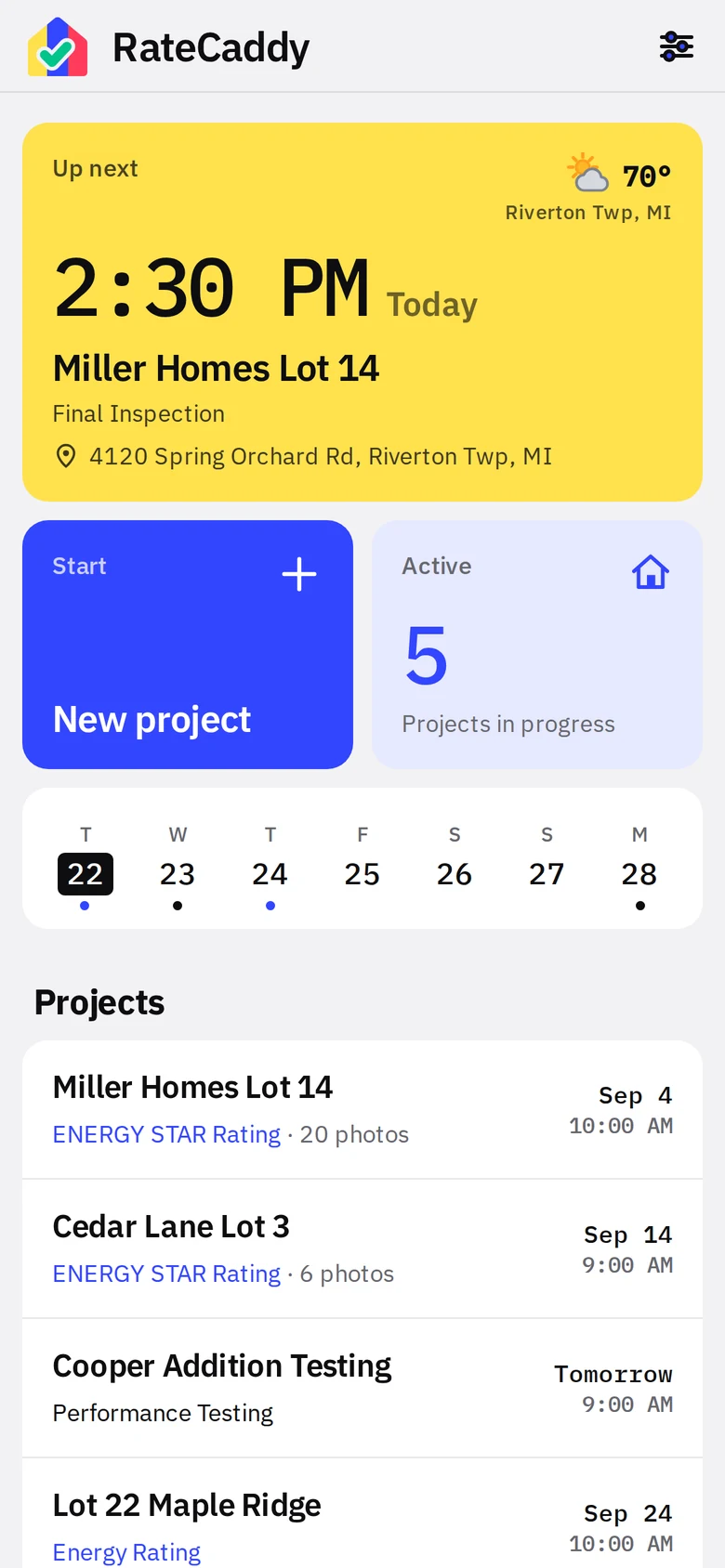
- 1Wordmark and the houseThe house lives in the stationary top bar. Leave Home and it slides to the right end of the bar on the next screen, where it is the Home button; tap it to come straight back from any depth.
- 2SettingsMeasure lists, appearance, weather, code requirements, report info, backup and legal.
- 3Up nextyellowYour soonest appointment: time, project, stage and address. One tap opens that stage’s photo wall. It stays up for 90 minutes after the start time, then moves on.
- 4Weather at the next stopOptional. The National Weather Service forecast for the appointment hour, looked up by the town and state in the address, never the street. Off by default.
- 5New projectblueOpens the New Project form. Rating projects get a measure list and two stage dates; performance projects get a test date.
- 6Active countHow many projects are in progress. Tap for the full list with Active, Waiting and Completed tabs, and a search box once a tab has more than five projects.
- 7Week stripyellowToday plus six days. Blue dots are inspections, black dots are tests. Tap a day to open the schedule on it.
- 8Projects previewThe next five projects by date, with type and photo count. Blue type is a rating, black type is a test.
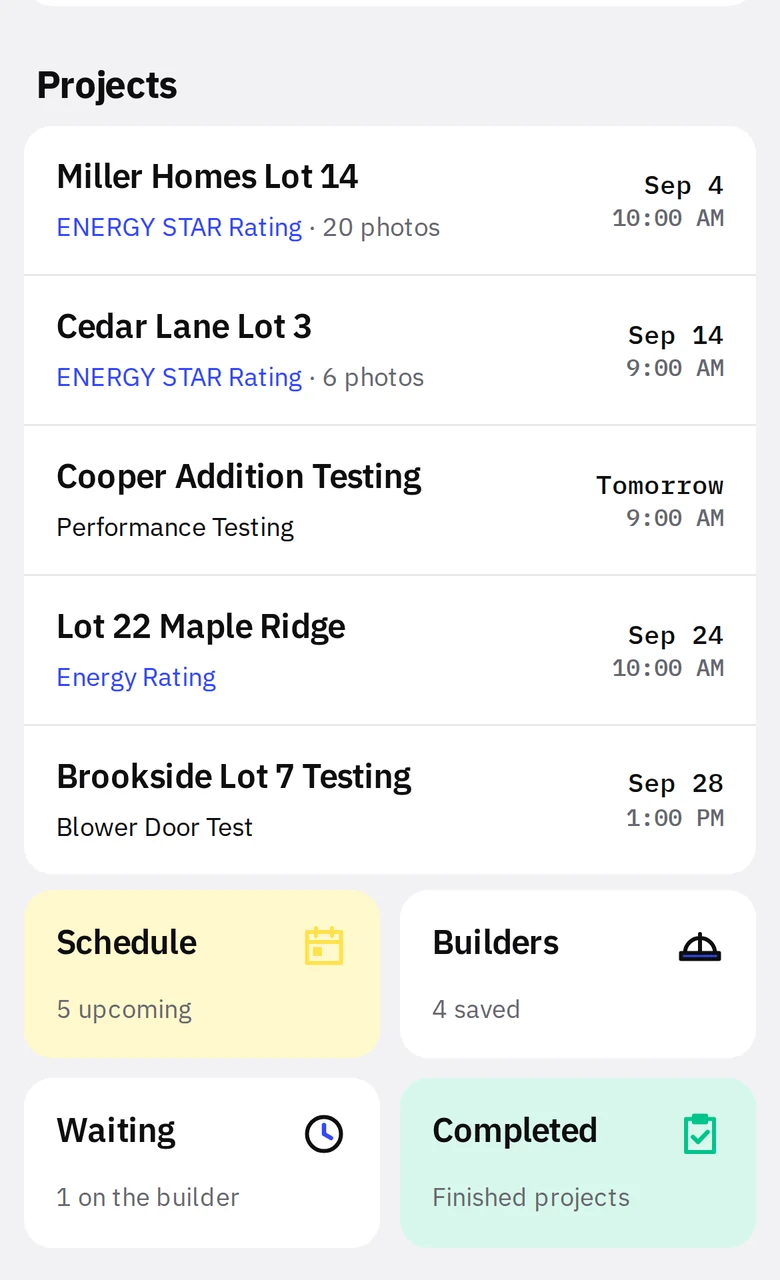
Further down Home
- 1ScheduleyellowMonthly calendar plus a list of every upcoming stop.
- 2BuildersSaved builder contacts. New projects can pull a builder in with one pick.
- 3WaitingProjects parked between visits while the builder finishes. They leave Up Next and the schedule until the last visit’s date is booked.
- 4CompletedgreenFinished projects. Still exportable, still restorable, out of the way.
Projects list
Every project in three tabs. Completed projects keep their date and can be sorted.
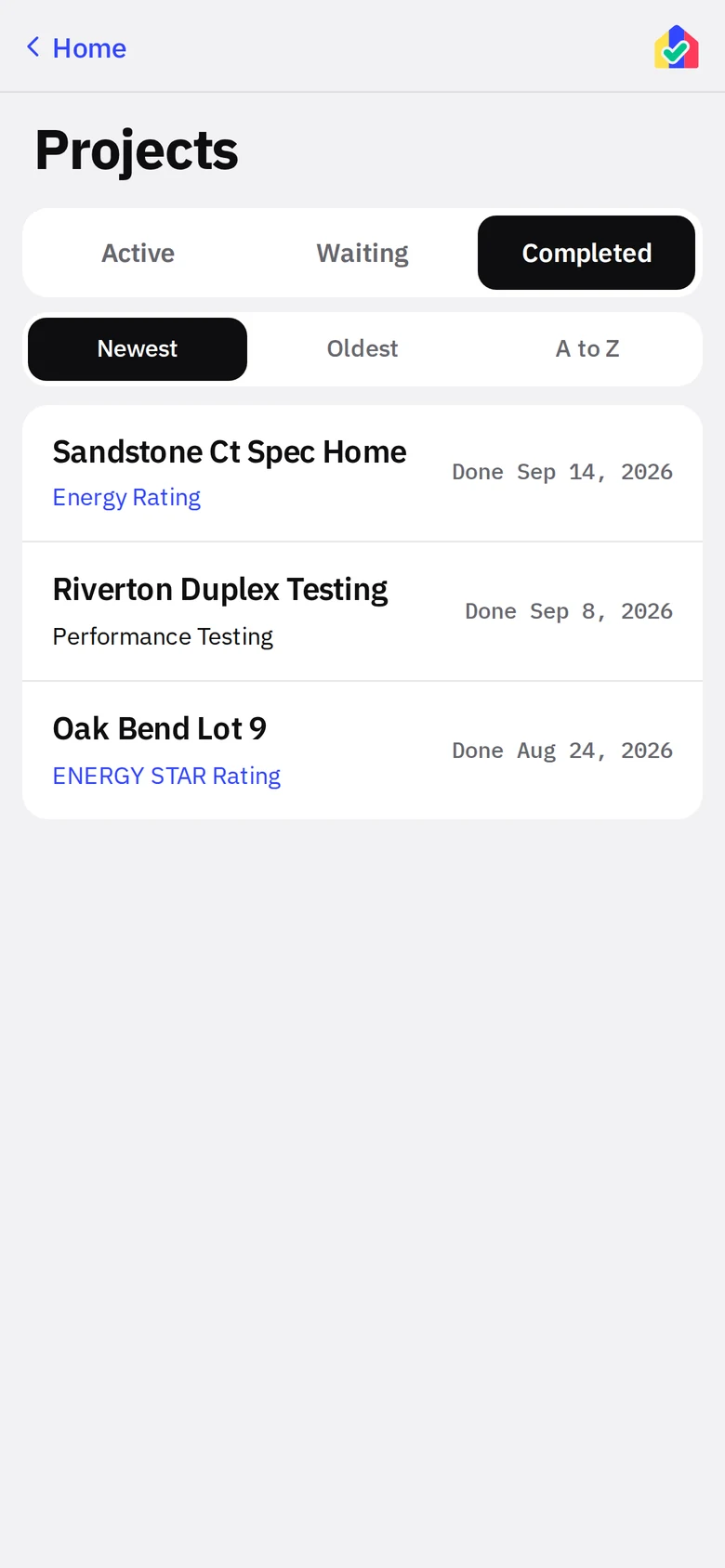
- 1Active, Waiting, CompletedblackActive is the working list and carries the New project row. Waiting holds parked projects. Completed is the archive.
- 2SortNewest, Oldest or A to Z, remembered on the phone. Appears when there is more than one completed project.
- 3Done dateMarking a project completed stamps the time; the row shows it. Reopening clears it.
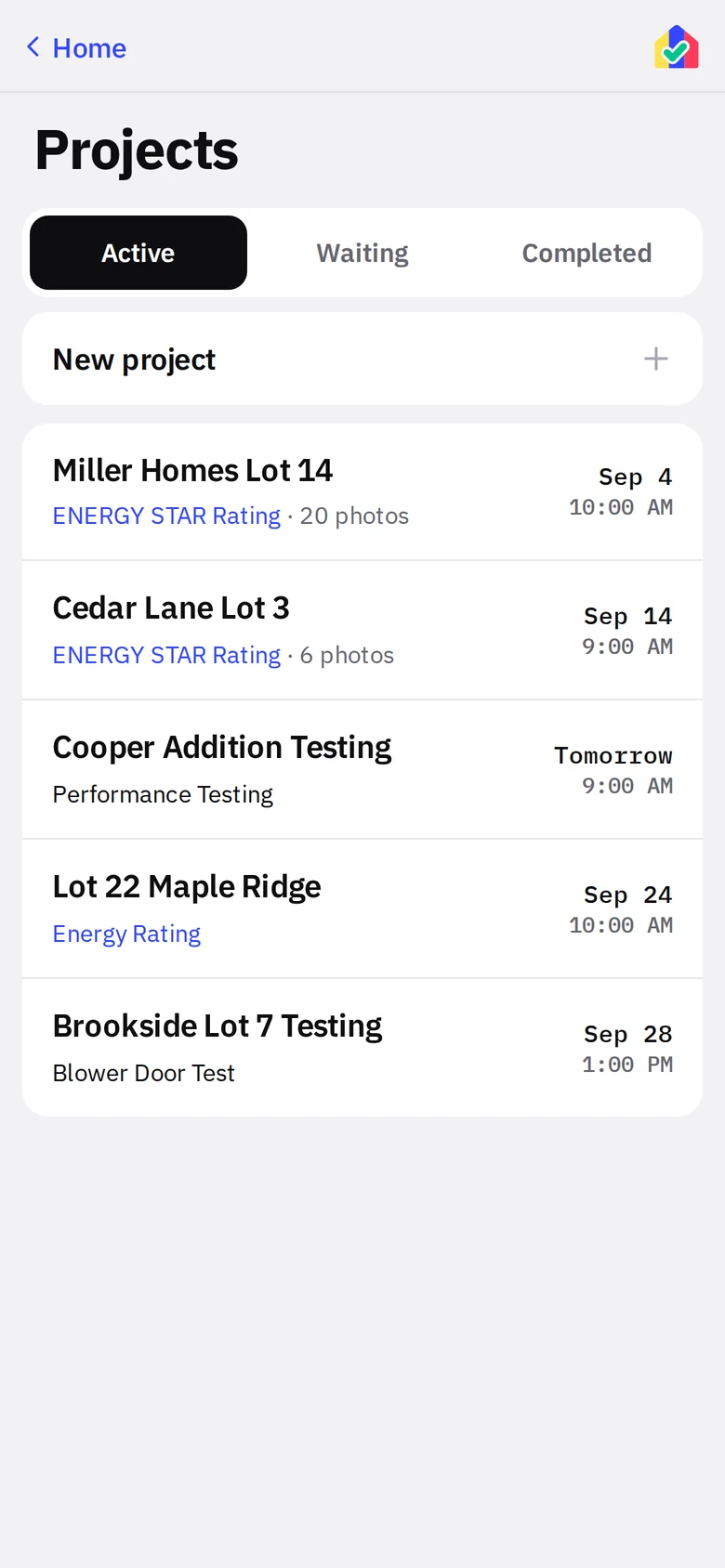
Active tab
- 1New projectThe same form as the blue tile on Home.
- 2Project rowName, type (blue for a rating, black for a test, or your own list name), photo count and the next appointment. Tap to open. A one-off test opens its test screen directly.
Project
A rating project is two stages, an optional ENERGY STAR checklist, the site and builder, notes, and export.
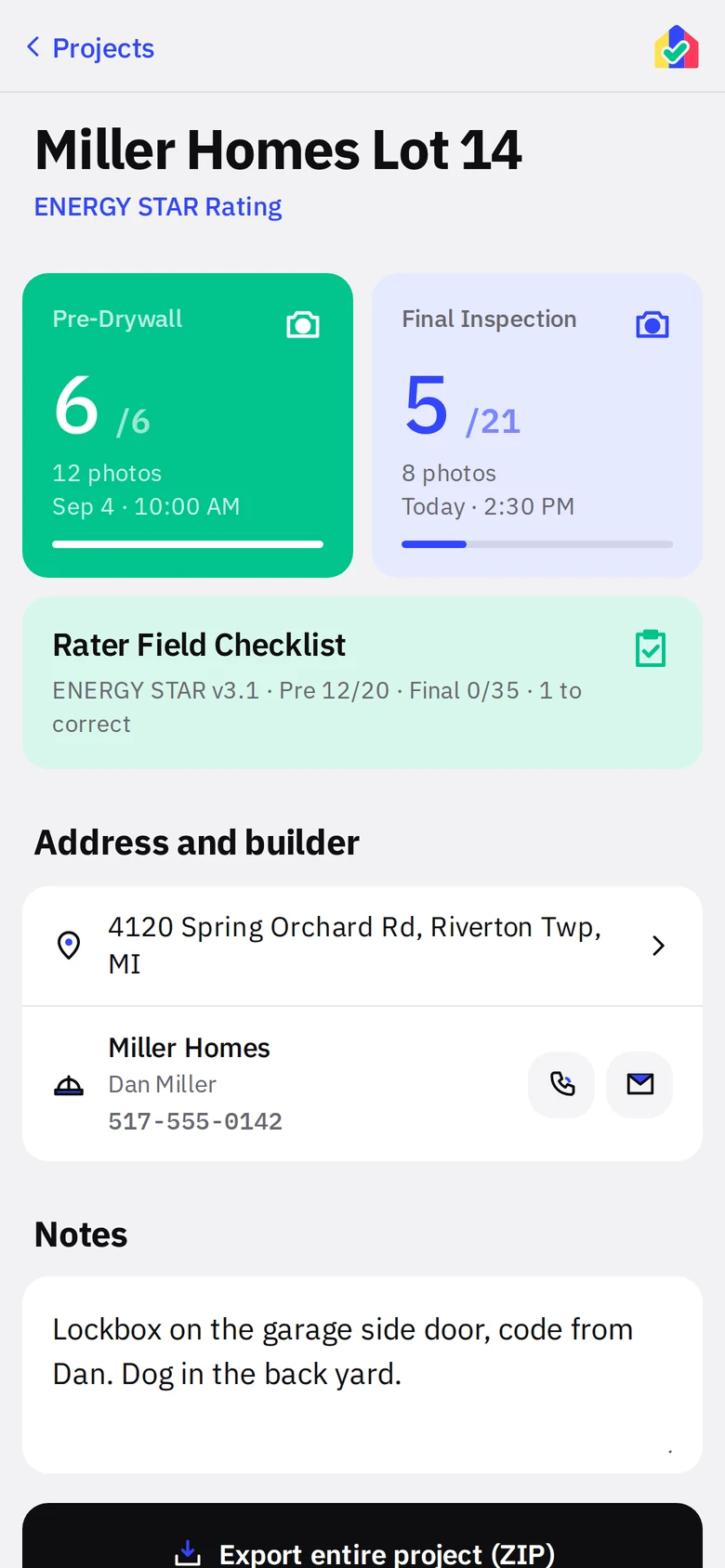
- 1BackThe top bar names the parent screen. Back goes up one level; the house at the other end goes Home. Scroll and the screen title appears in the bar once the heading passes under it.
- 2Pre-DrywallgreenThe stage card shows measures shot out of total, photo count, and the appointment. Green means every measure has a photo.
- 3Final InspectionblueStill open. Tap either card to open that stage’s photo wall.
- 4Rater Field ChecklistgreenENERGY STAR jobs get the Rater Field Checklist with progress per stage and the count of Must Correct items.
- 5Address and builderThe address opens Maps. The builder row has call and email buttons. Both come from the project form.
- 6Project notesFree text that prints on the notes PDF inside the export. Lockbox codes, dogs, whatever the next visit needs.
- 7Export entire projectblackBuilds one ZIP: a folder per stage, photos named by measure, and the notes PDF. Opens the share sheet.
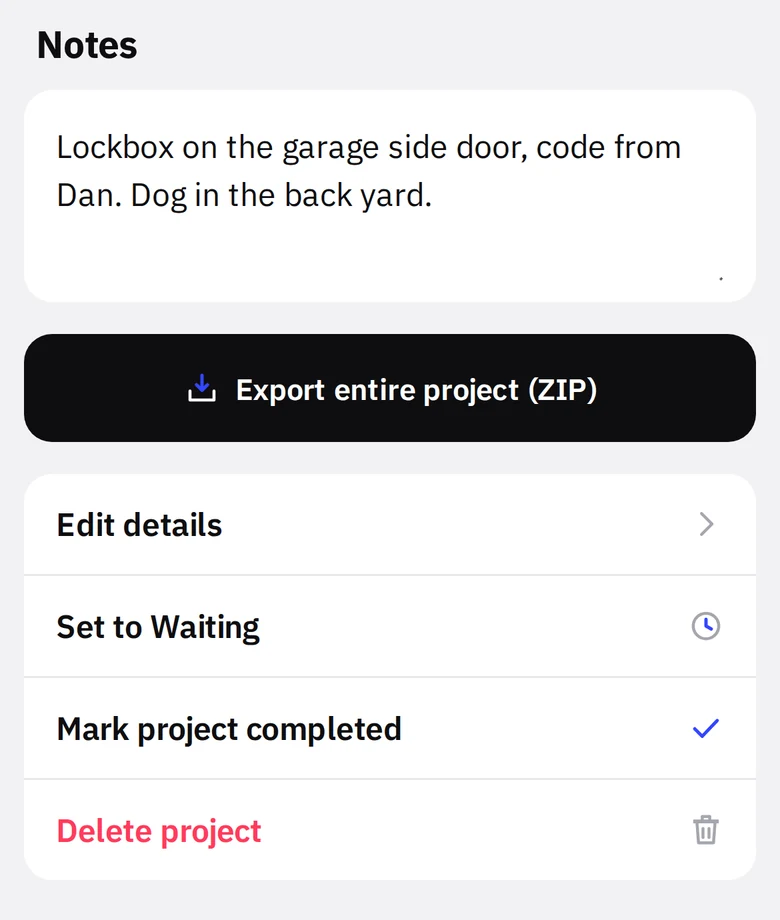
Project actions
- 1Edit detailsName, address, builder, ENERGY STAR flag, and the two stage dates.
- 2Set to WaitingParks the project while the builder finishes. It resumes automatically when the last visit’s date is booked or moved.
- 3Mark project completedMoves it to the Completed tab. Nothing is deleted.
- 4Delete projectredAsks first. Removes the project and its photos from the phone. Export before you do this.
The photo wall
Each stage is a two-column wall of measure tiles in the order you walk the house. This is the screen you live on during an inspection.
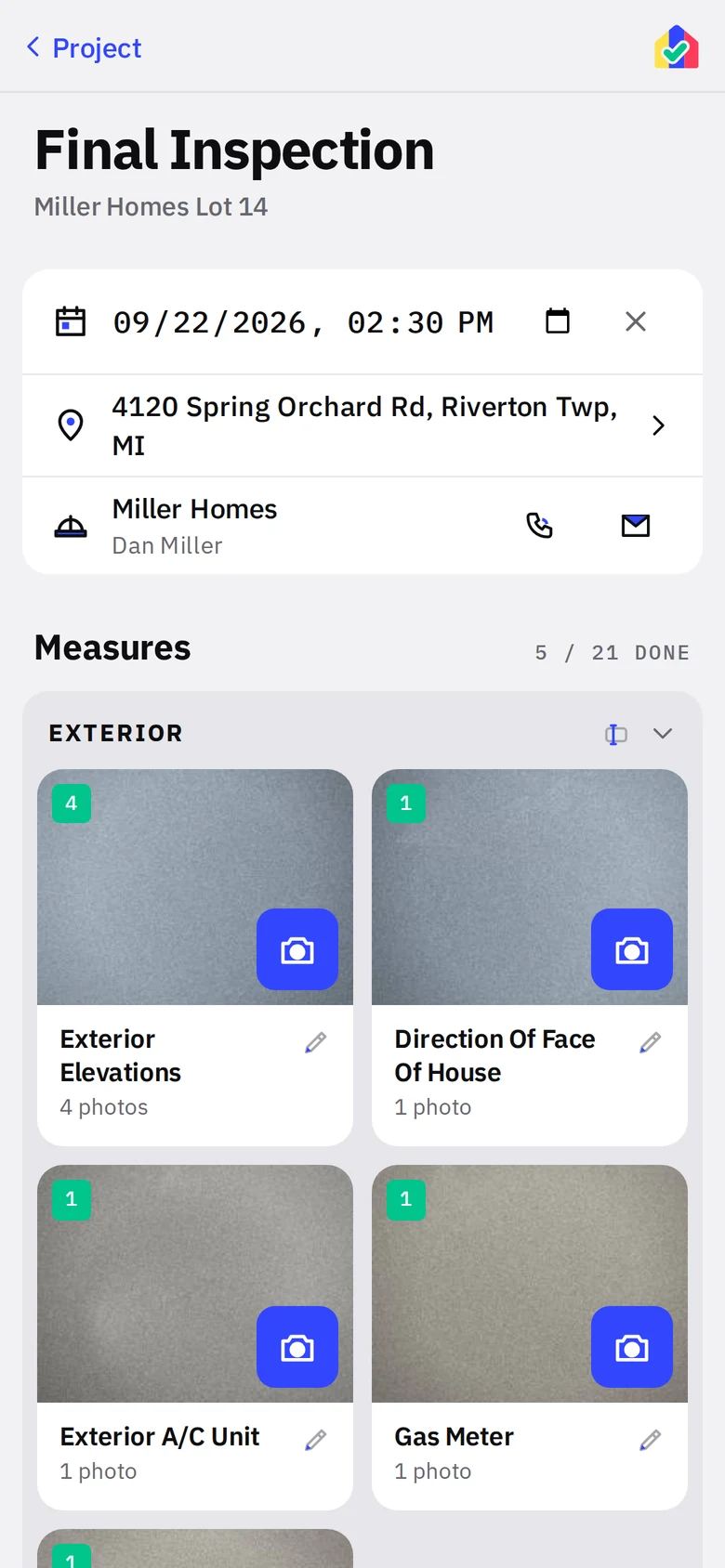
- 1AppointmentyellowDate and time for this stage. Feeds Up Next, the week strip and the schedule. The X clears it.
- 2Address and contactDirections and the builder’s call and email buttons, right on the wall. Up Next opens here, so there is no backing out to the project to get directions.
- 3ProgressMeasures with at least one photo out of the total for this stage.
- 4GroupMeasures can be grouped under a heading (Exterior, Kitchen, Attic). The rename icon renames the group; tap the heading to collapse or expand it.
- 5Count badgegreenHow many photos are on the measure. Blue while shooting, green once the tile has a photo.
- 6ShootblueTap to open the camera straight into this measure. The photo is stored under this project, stage and measure with no naming step.
- 7TileThe thumbnail is the newest photo. Tap the tile itself (not the camera) to open the measure screen with all its photos. The small pencil at the bottom right opens the measure’s note without leaving the wall.
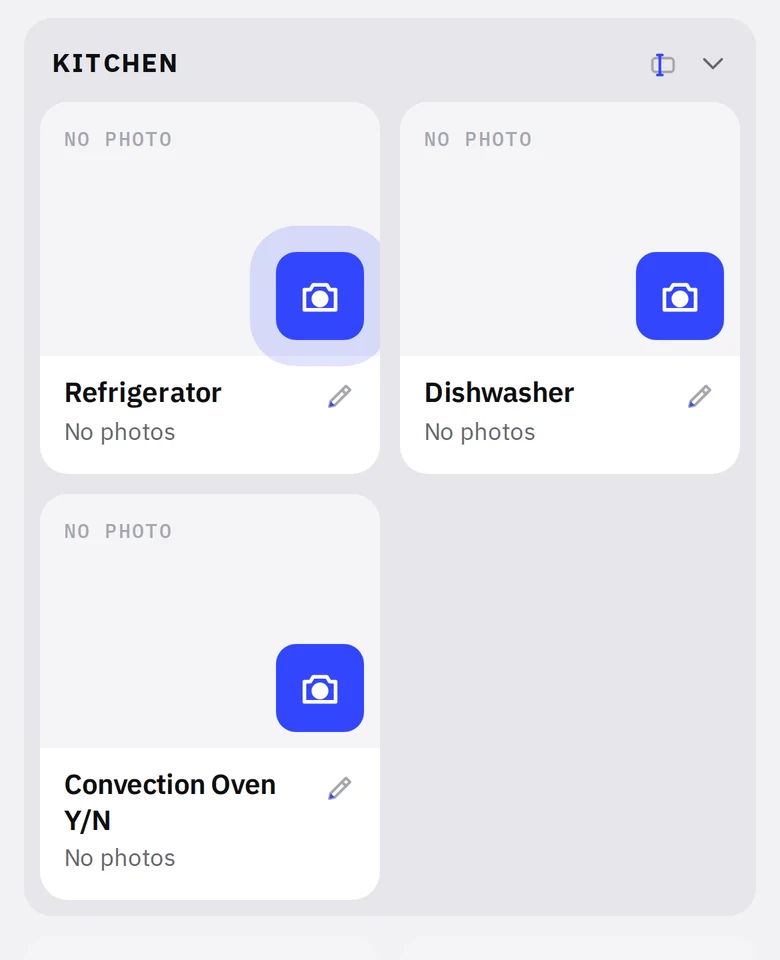
Down the wall
- 1Next to shootblueThe first tile without a photo gets a pulsing ring on its camera, so the next shot is obvious without reading.
- 2Empty tile"No photo" in gray. Hold and drag any tile to reorder, or drop it onto another to start a group.
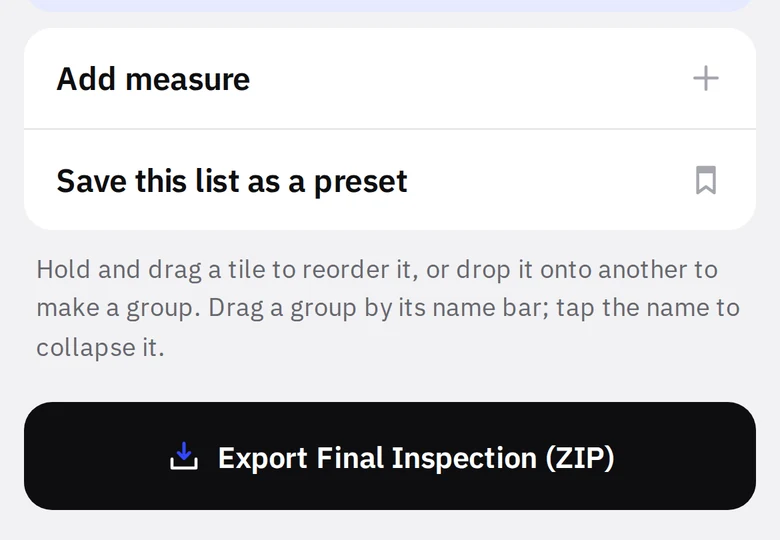
Bottom of the wall
- 1Add measureAdds a measure to this project only. The built-in lists are untouched.
- 2Save this list as a presetTurns this project’s edited list into a reusable measure list in Settings.
- 3Export this stageblackA ZIP of just this stage, files named by measure. Handy for sending pre-drywall photos before final.
Measure
Everything about one measure: its photos, a note, and housekeeping.
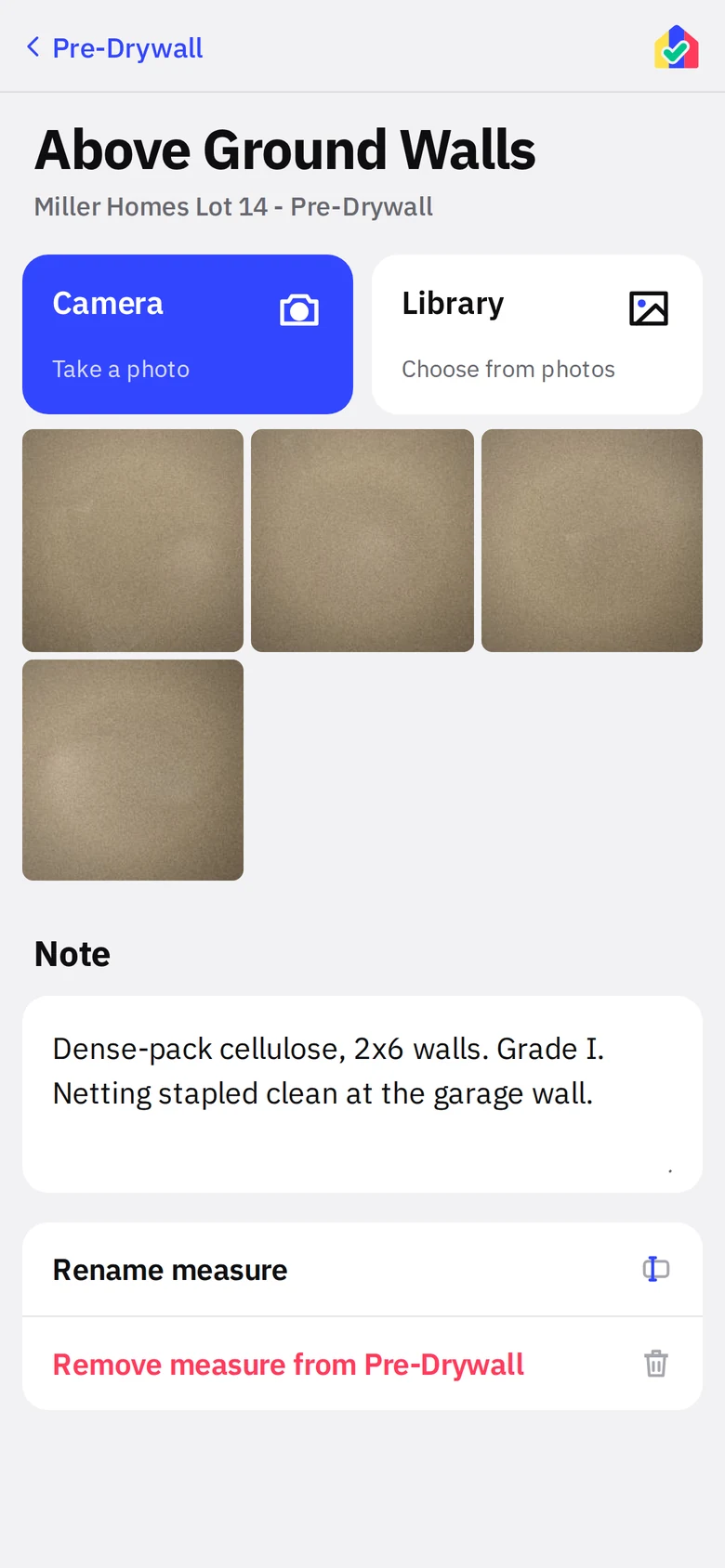
- 1CamerablueTake another photo into this measure.
- 2LibraryPick from the phone’s photo library instead. Useful when someone texts you a picture.
- 3PhotosEvery photo on this measure, newest last. Tap one to open the viewer.
- 4NoteOne note per measure. It prints in the notes PDF under this measure’s name, so "Grade I, netting stapled clean" travels with the photo.
- 5Rename measureRenames it on this project only, and every photo already on it follows the new name.
- 6Remove measureredRemoves the measure from this stage. Asks first.
Photo viewer
Full-screen review with the controls a rater actually uses.
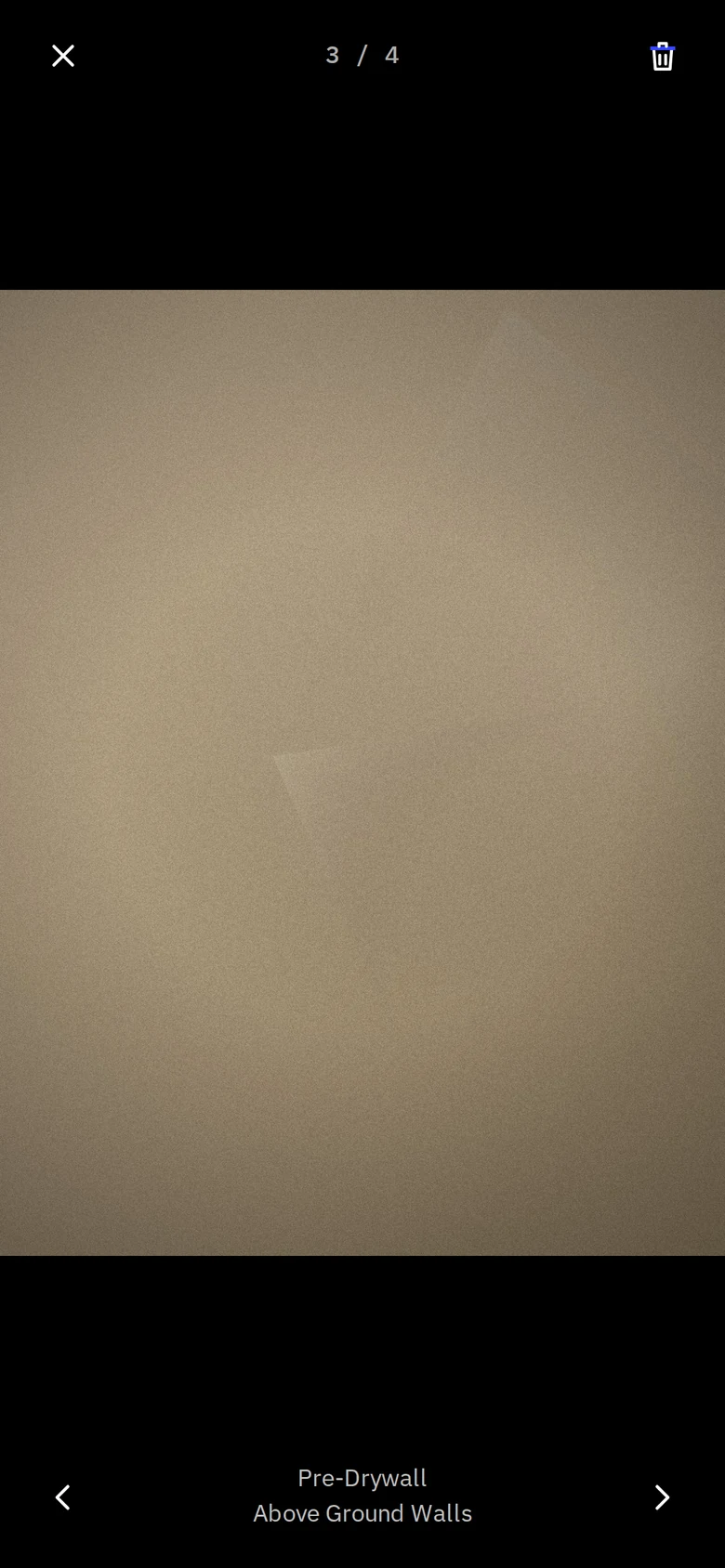
- 1CloseBack to the measure.
- 2PositionWhich photo of how many on this measure.
- 3DeleteredDeletes this one photo. Asks first.
- 4Zoom and panPinch to zoom up to 5x, drag to pan, double-tap to jump between 2.5x and 1x. Rim joist foam and window stickers are readable.
- 5Previous and nextArrows step through the measure’s photos. The caption shows stage and measure.
Blower door test
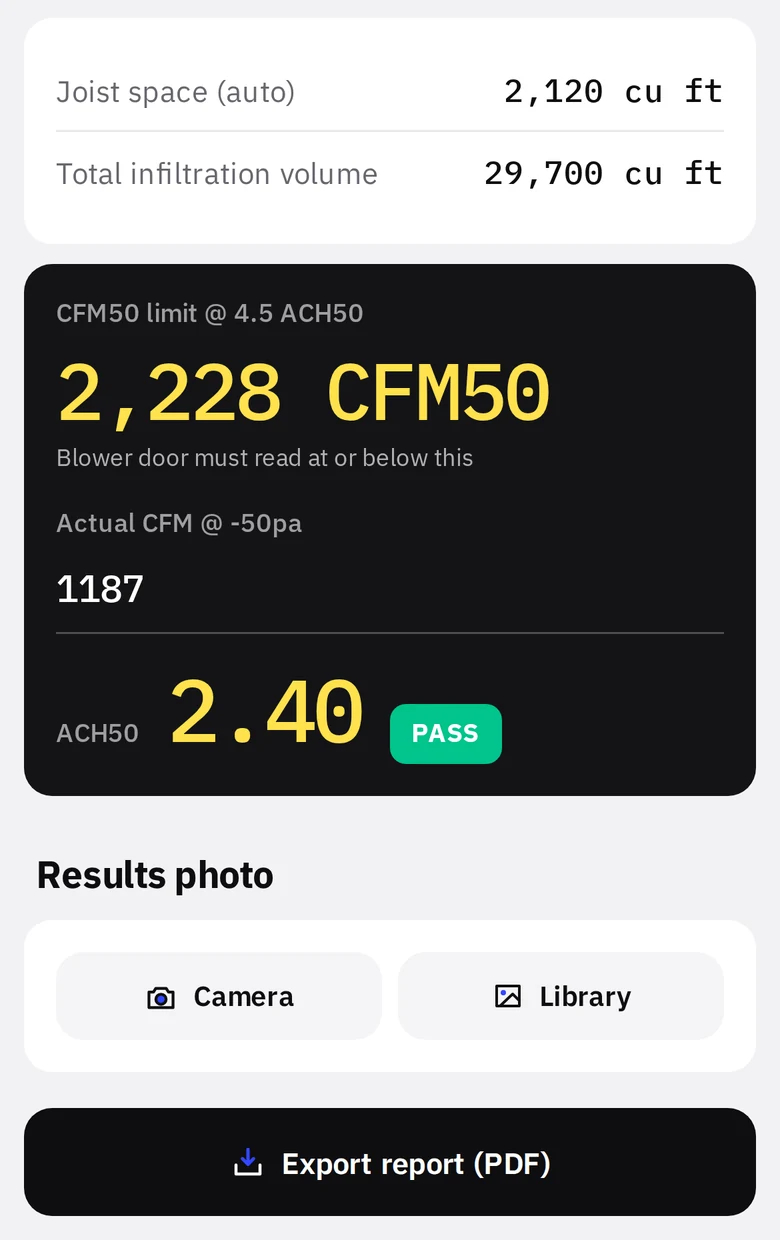
Enter the floors and the reading. RateCaddy computes the volume, the allowable leakage under your code, the ACH50, and pass or fail, then prints the report.
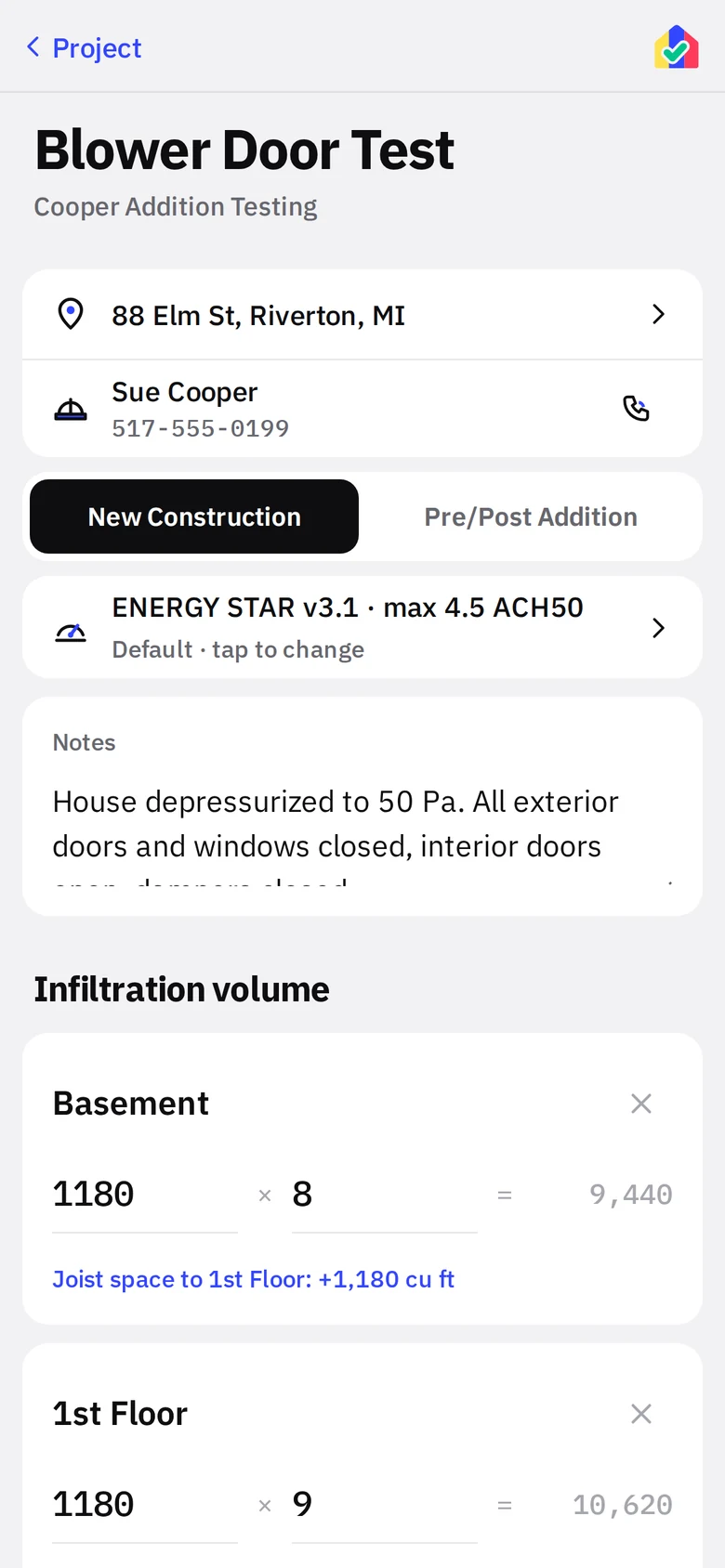
- 1Address and contactDirections, call and email at the top of the test. On a project with both tests the date lives on the project screen; a one-off test shows its date row here.
- 2ModeblackNew Construction computes ACH50. Pre/Post Addition compares a final CFM50 against the pre-test reading plus the allowance for the added volume.
- 3Code requirementsThe ACH50 limit in force for this project. Tap to override it for this project only; the default lives in Settings.
- 4NotesSetup, conditions, equipment. Prints on the report.
- 5FloorLabel, area and ceiling height. Volume is computed per floor.
- 6Joist spaceThe space between stacked floors counts as volume. It is added automatically (area of the smaller floor times 1 ft) and can be toggled off per floor.
Readout and report
- 1TotalsJoist space and total infiltration volume in cubic feet.
- 2ReadoutblackThe black instrument shows the CFM50 limit at your ACH50, then takes the actual reading and returns ACH50 and PASS or FAIL in green or red.
- 3Results photoblueA manometer photo attached to the test. It prints on the report.
- 4Export reportblackThe Blower Door Test Results PDF with your company header, the volume table, the limit, the result band, and the photo.
Duct leakage test
One or more systems, each tested against the path that applies: ENERGY STAR 6.4 and 6.5, or the percent-of-floor-area limits from your energy code. The ANSI 310 grade comes from the same readings.
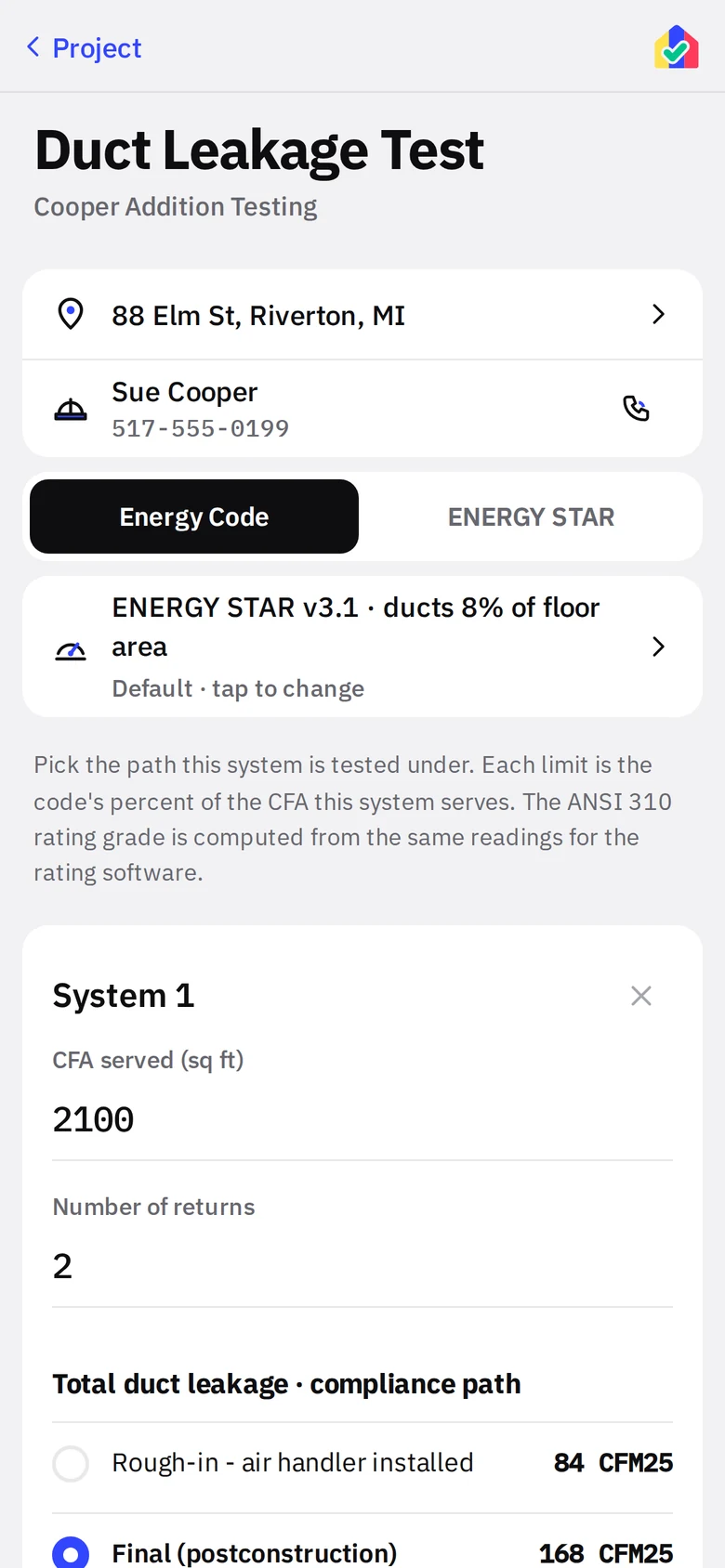
- 1StandardblackEnergy Code uses the limits from Code requirements. ENERGY STAR uses the fixed program limits (4% or 40 CFM25 rough-in, 8% or 80 final, footnote 28 for three or more returns).
- 2Code in forceWhat this project is being held to. Tap to change for this project.
- 3SystemConditioned floor area served, number of returns, and the compliance path. The limit for each path is shown in CFM25 next to the radio.
Path and readout
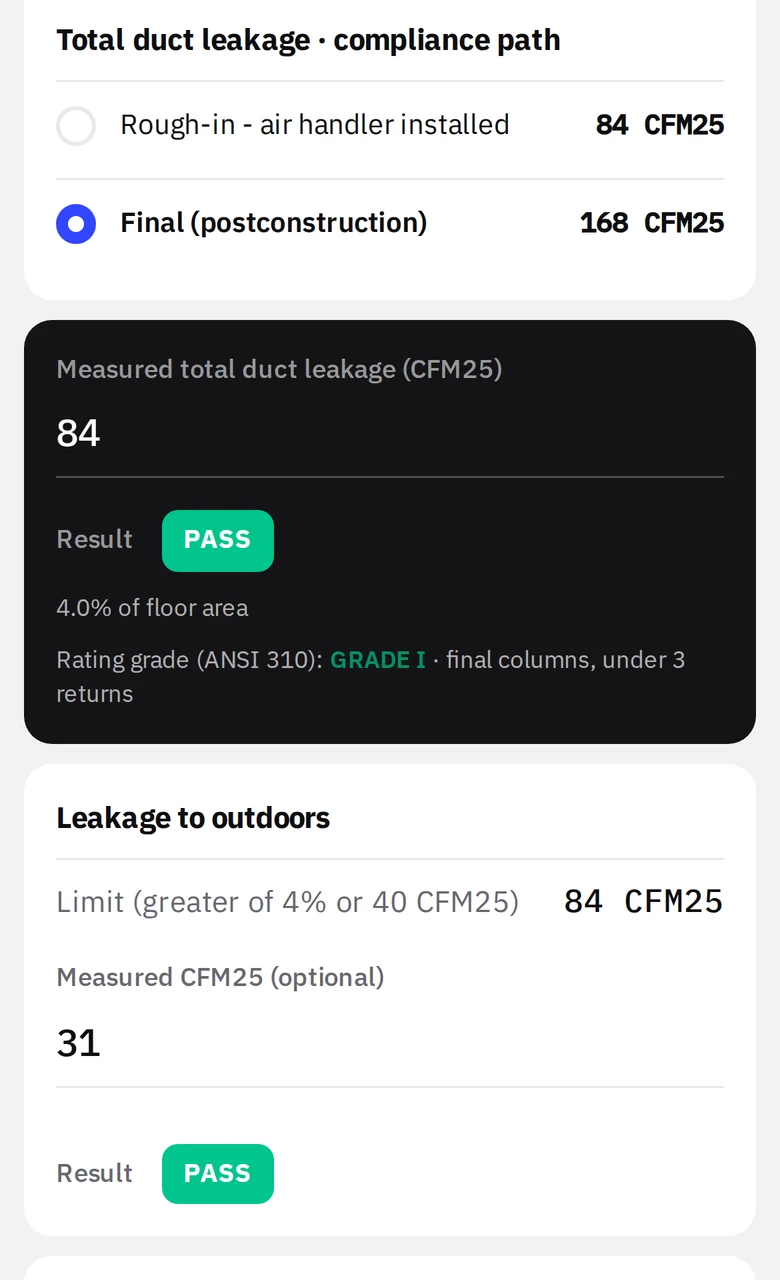
- 1Compliance pathRough-in with or without the air handler, final, or ducts inside the envelope. Each shows its computed CFM25 limit for this system’s floor area.
- 2Measured total leakageblackEnter the CFM25. The readout returns the percent of floor area, PASS or FAIL, and the ANSI 310 grade.
Outdoors, photos, more systems
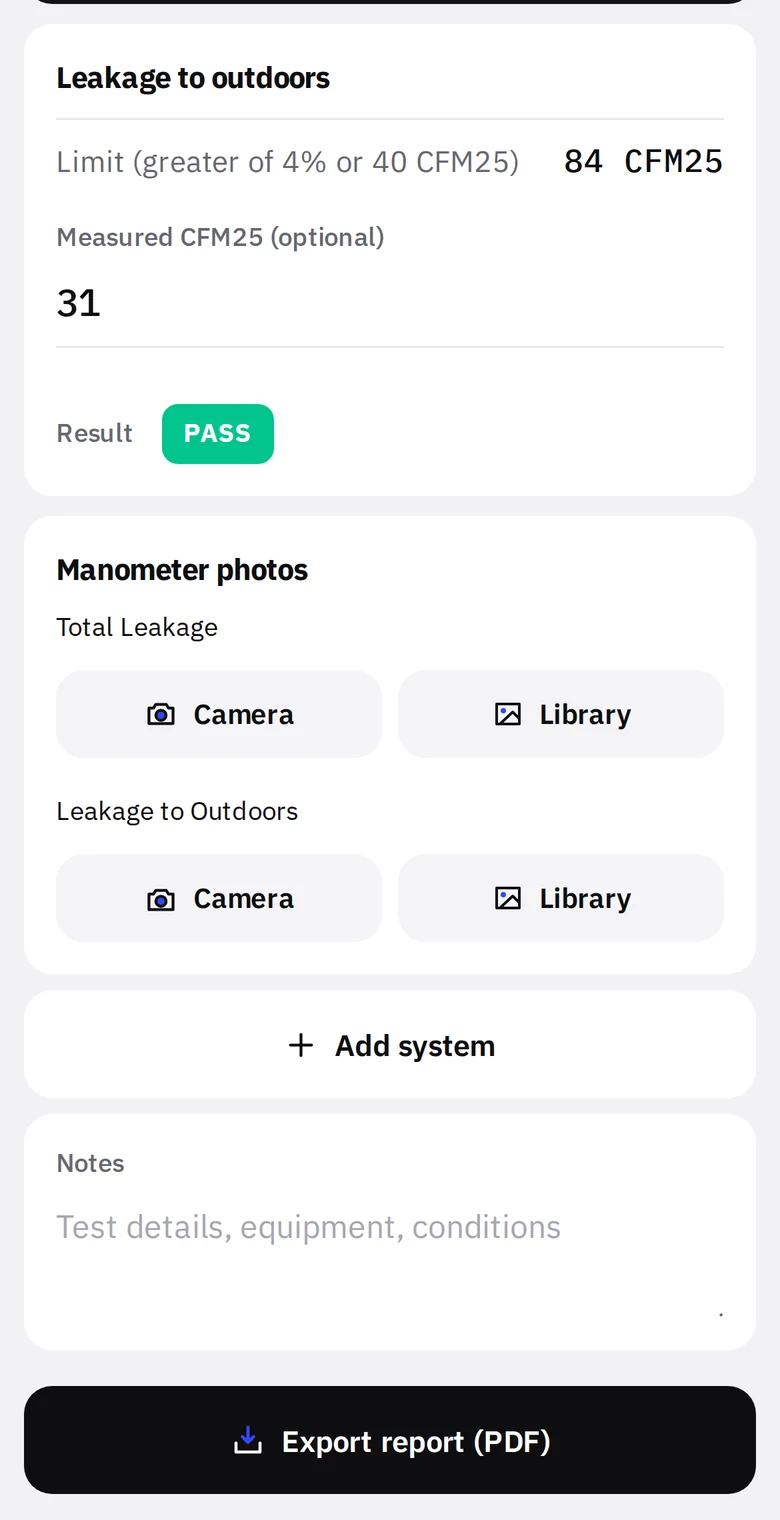
- 1Leakage to outdoorsOptional reading with its own limit. Under ENERGY STAR the outdoors test is waived when total leakage already meets the outdoors limit, and the report says so.
- 2Manometer photosblueTotal and outdoors readings, one photo each, printed on the report.
- 3Add systemMulti-system homes get a system per row. The report lists each and an overall result.
- 4Export reportblackDuct Leakage Test Results PDF.
ENERGY STAR Rater Field Checklist
The National Rater Field Checklist (Rev. 14) items in the app, split by stage, with photos per item, notes, and export to the official EPA form.
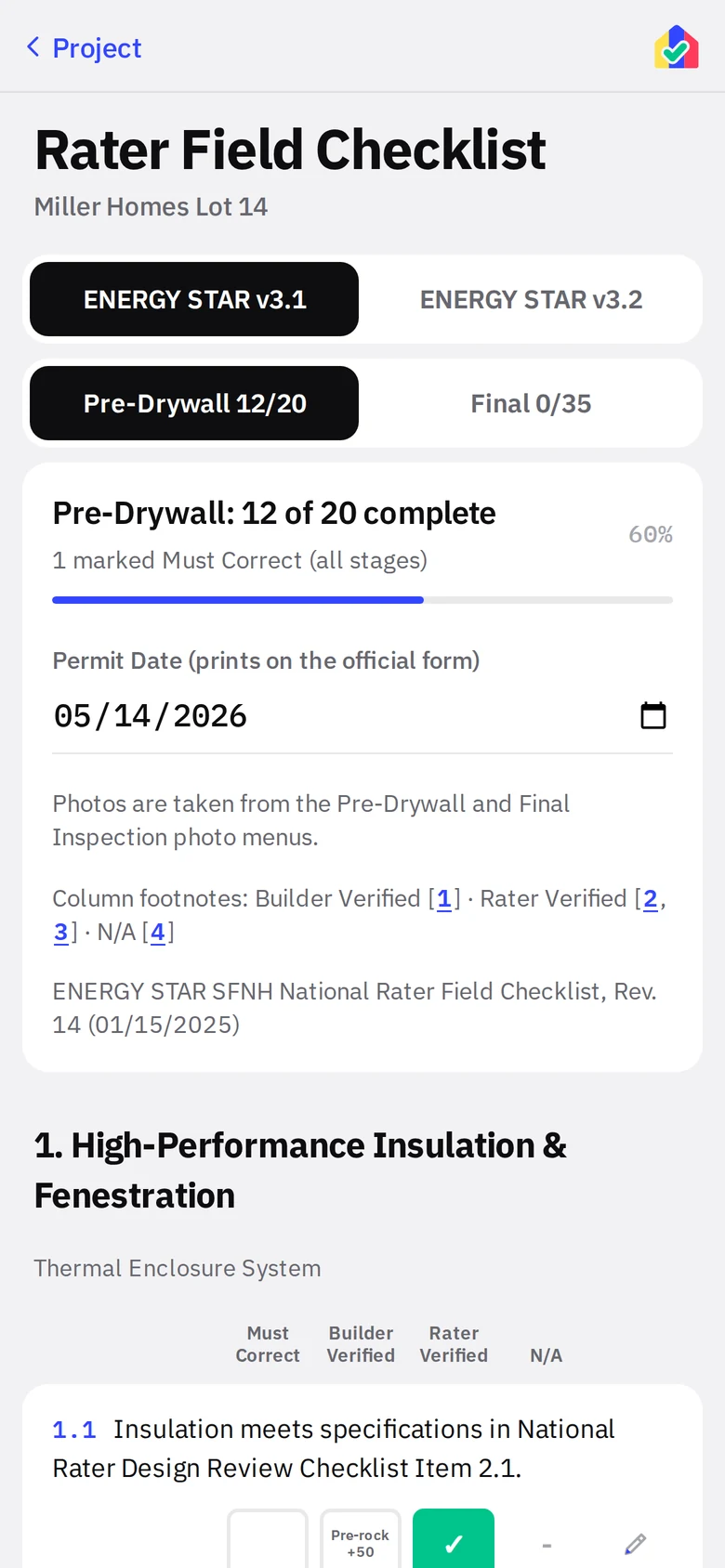
- 1Versionblackv3.1 or v3.2. Item text and limits follow the selected version.
- 2StagePre-Drywall or Final items, each with a done count.
- 3Progress and permit datePercent complete, open Must Correct items, and the permit date that prints on the official form. Photos for items come from the stage photo wall.
- 4SectionsNumbered exactly as the EPA checklist so the office can follow along.
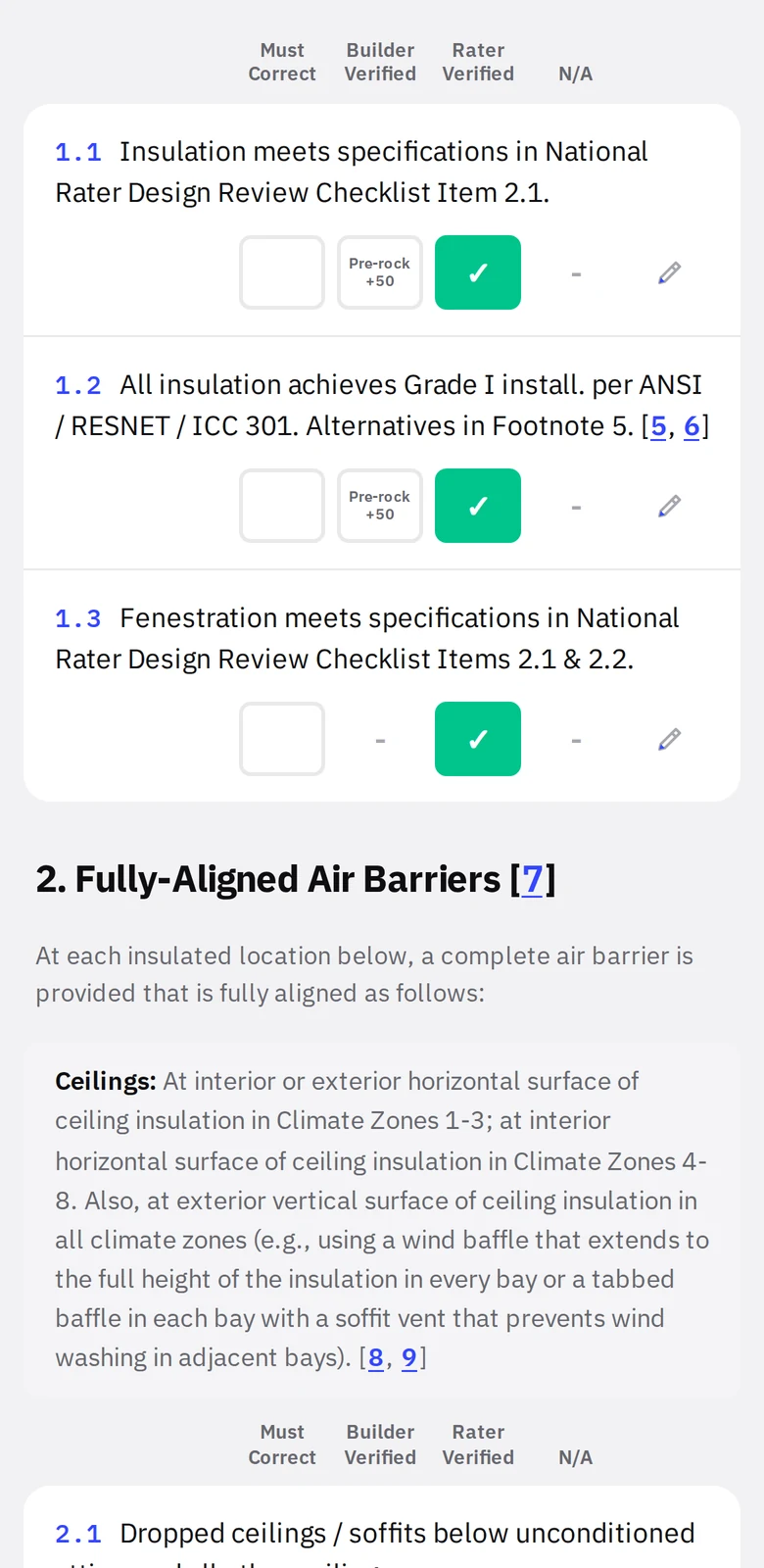
Items
- 1ColumnsMust Correct, Builder Verified, Rater Verified, N/A, matching the form. Only the columns the form allows for that item are enabled.
- 2ItemTap a box to set it, tap again to clear. Items with a camera get a photo tile on the stage wall under ENERGY STAR Requirements.
- 3Builder Verified limitThe form’s allowance (for example "Pre-rock +50" or "≤ 50 sq. ft.") is printed under the box so you are not guessing.
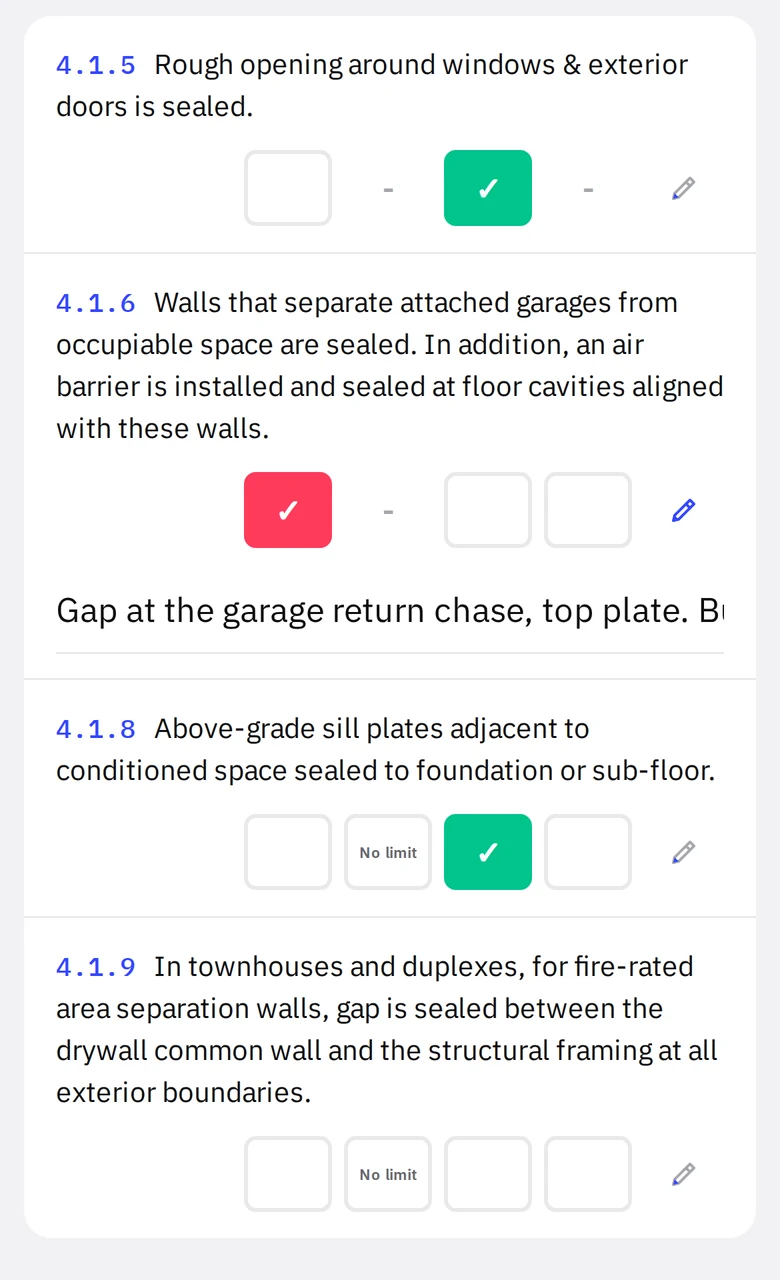
Must Correct
- 1Must Correct with a noteredA red item counts as open on the project tile until it is changed. The note field holds what the builder needs to fix.
- 2Item noteFree text per item. Prints with the export.
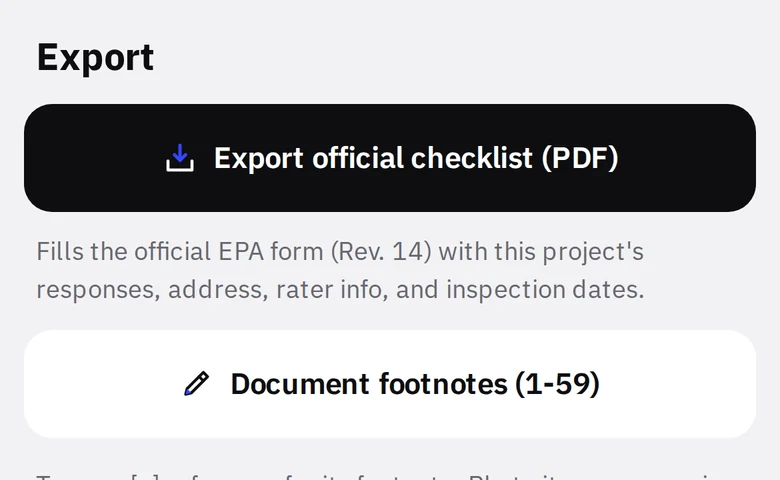
Export
- 1Export official checklistblackFills the actual EPA PDF form with your boxes, address, permit date and notes. What you send is the government form, not a lookalike.
- 2Document footnotesAll 59 footnotes from the checklist, in the app, offline.
Schedule
Every visit and test appointment in one calendar. Dates are set on the project, the stage or the test screen, so the schedule is never out of sync with the work.
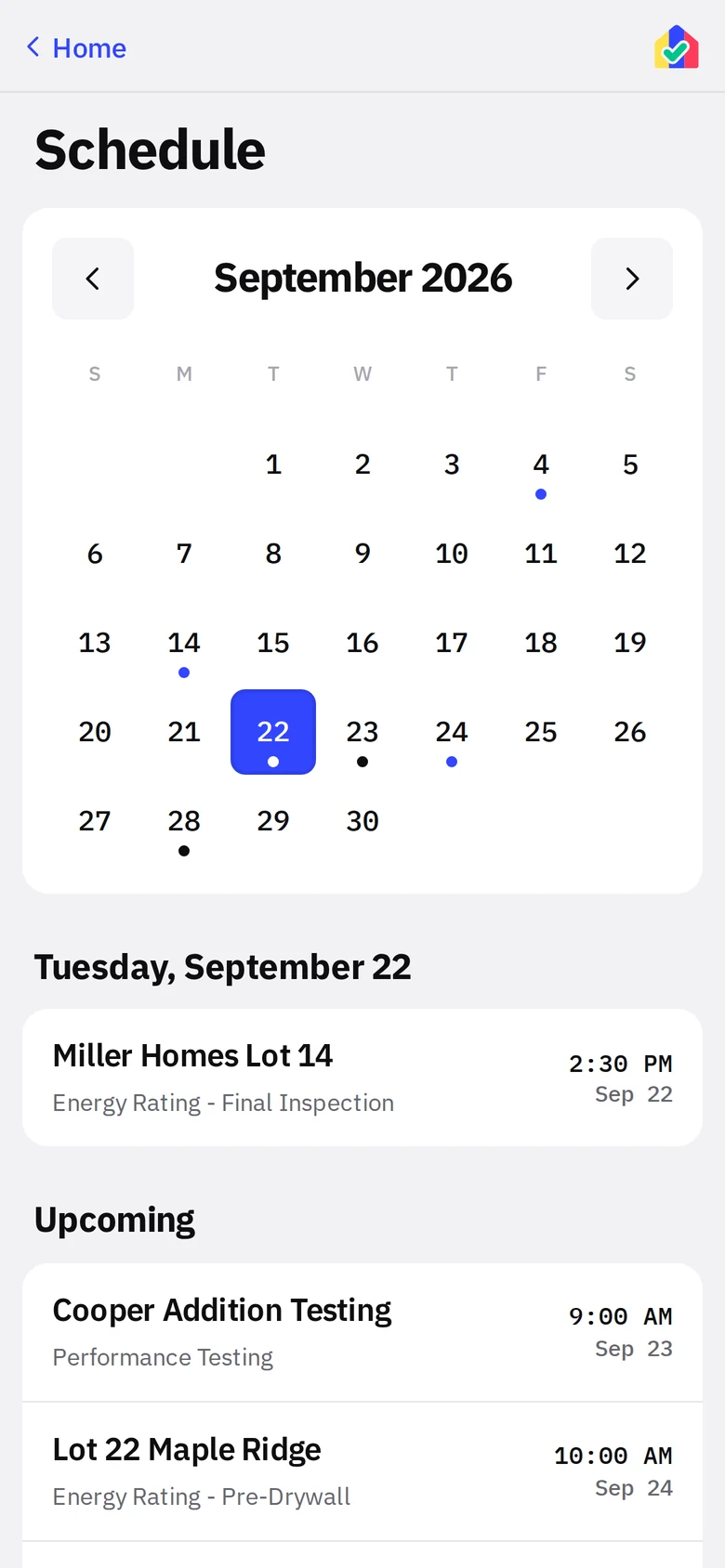
- 1MonthyellowDots mark days with work. Blue is an inspection, black is a test. Today is outlined; the selected day is filled.
- 2Previous and next monthStep through months. Today is one tap away from anywhere in the app via the week strip.
- 3Selected dayEvery stop on that day with its stage or test type. Tap to open it.
- 4UpcomingEverything after the selected day, in order.
Performance testing project
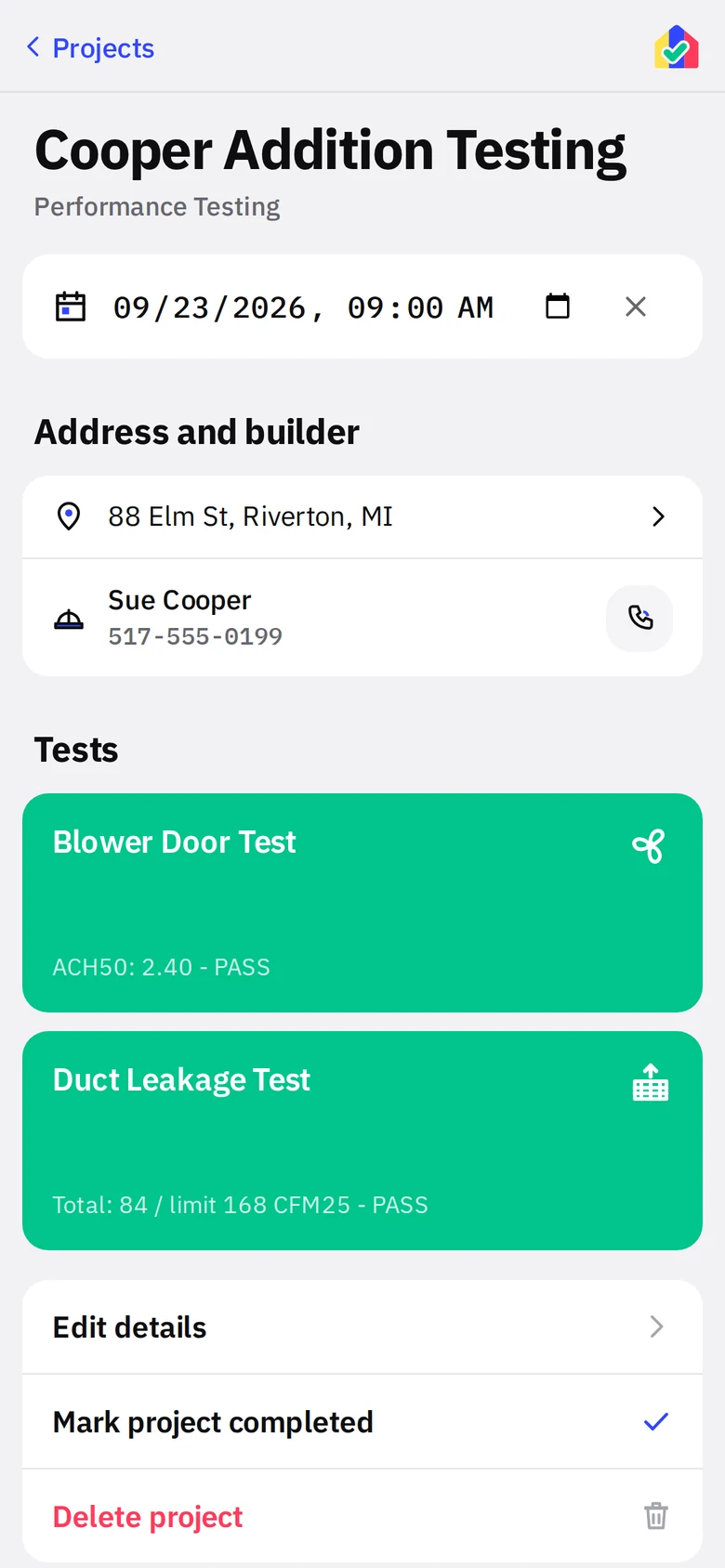
A blower door and duct test can be their own project when there is no rating attached. Both tests share one appointment.
- 1One appointmentyellowRaters test the envelope and the ducts on the same visit, so the project has one date and both tests carry it. Up Next, the week strip and the Schedule list it once as Performance Testing.
- 2Site and contactAddress opens Maps. Phone and email buttons on the contact.
- 3Blower Door TestgreenBlack until there is a result, then green for PASS or red for FAIL, with the ACH50 in the subtitle.
- 4Duct Leakage TestgreenSame rule. Total CFM25 and the limit in the subtitle.
A one-off test has no project screen
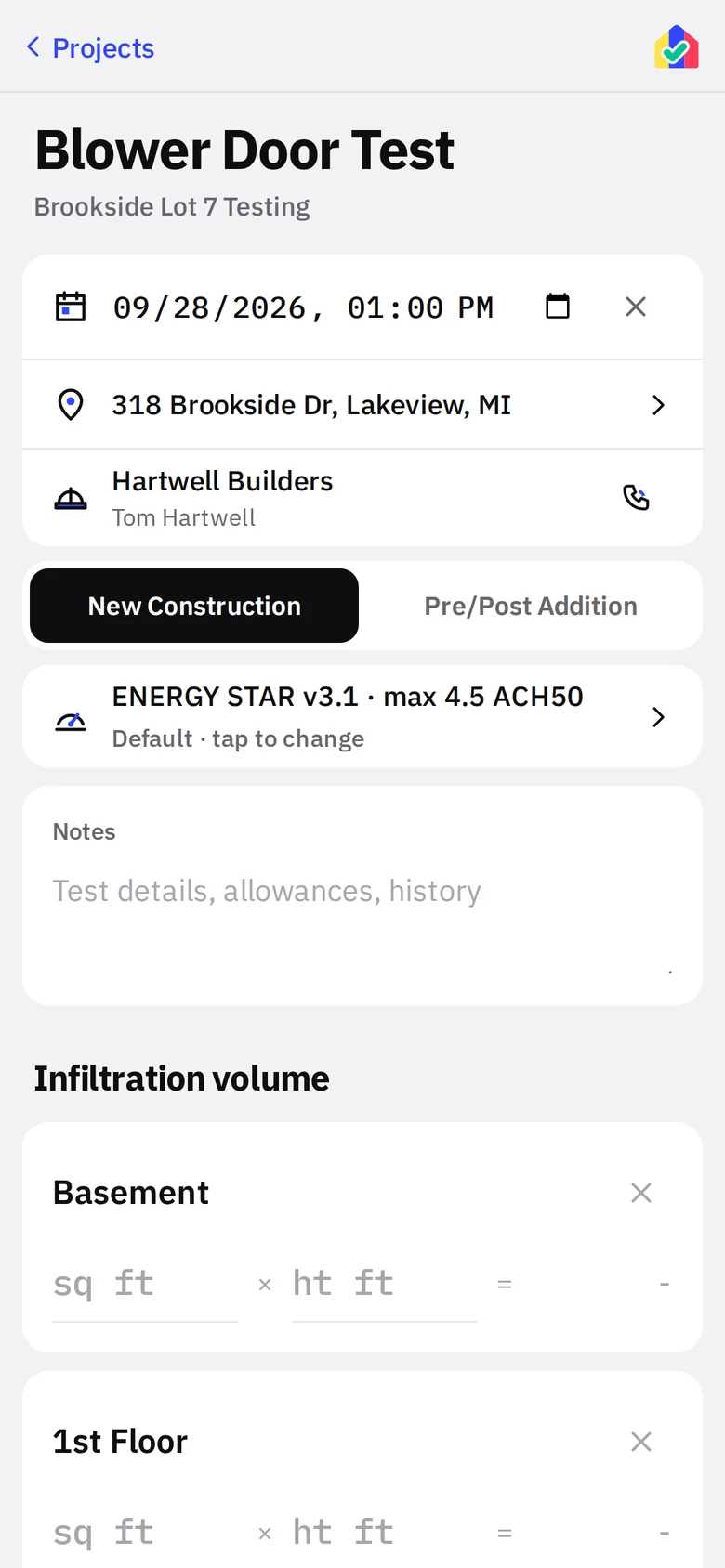
When a testing project has only a blower door or only a duct test, the test screen is the project. The Projects list, Up Next and the Schedule open it directly.
- 1Test dateyellowOn the test itself, since there is no project screen to hold it.
- 2Address and contactSame rows as everywhere else.
- 3Mode and codeblackThen the test proper: mode, code in force, notes, floors, readout.
Project actions on the test
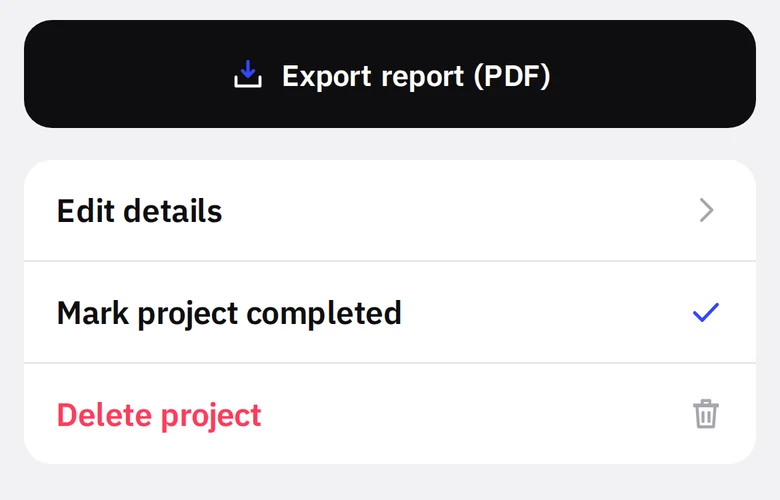
- 1Export reportblackThe PDF, as on any test.
- 2Edit details, complete, deleteThe project actions sit under the export. Turning the second test on from Edit details brings the project screen back.
Measure lists
The list of measures is data, not code. Edit the built-in list, or make a new one for a program, a builder, a QA provider, or a different trade entirely, with one or two visits named by you.
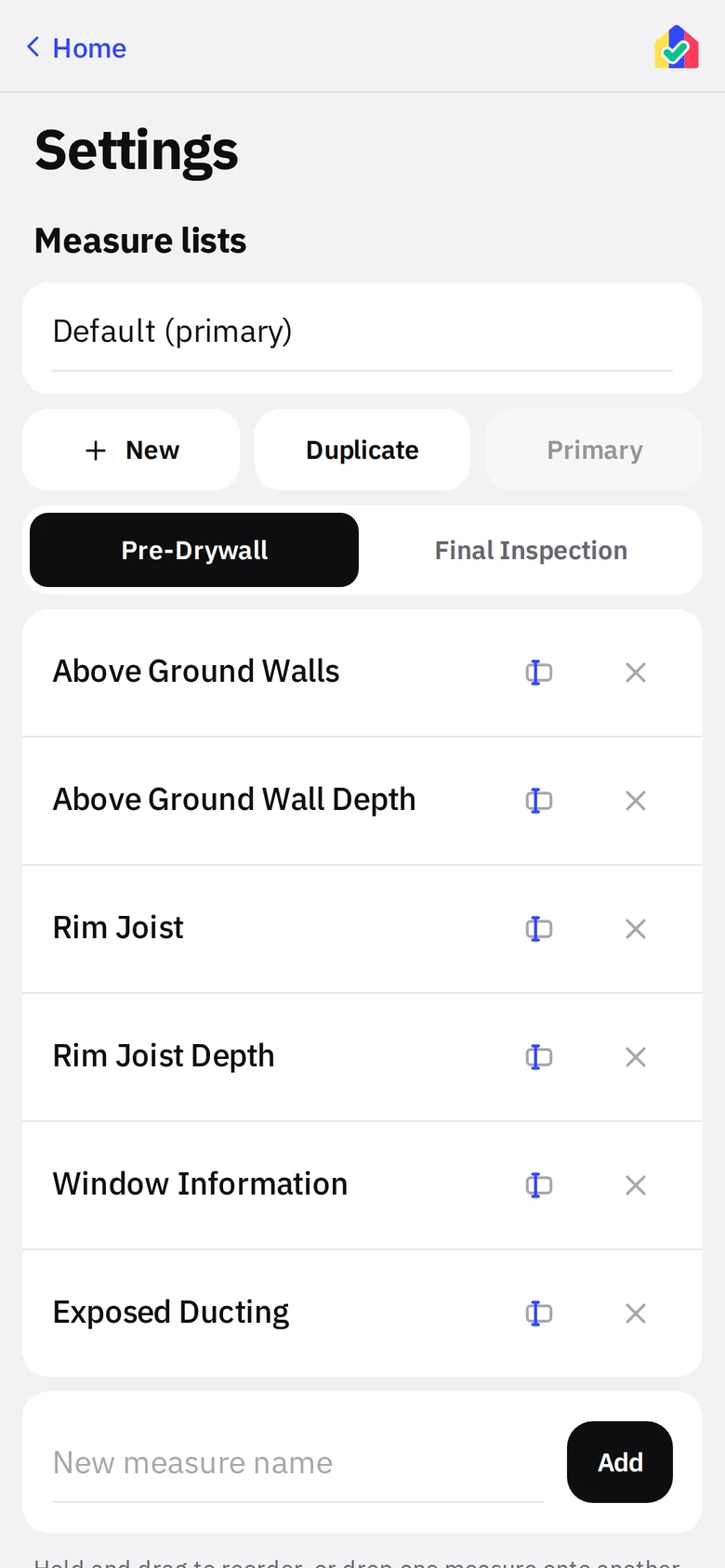
- 1Which listThe built-in Default list plus any you have made. The primary list is preselected on New Project.
- 2New, Duplicate, PrimaryNew asks for a name and a kind: Energy rating, One visit or Two visits. Duplicate copies the selected list, Primary makes it the default for new projects. Custom lists also get Rename and Delete.
- 3StageblackA rating list has a Pre-Drywall list and a Final Inspection list. A two-visit list shows its two visit names here; a one-visit list has no tabs.
- 4MeasuresHold and drag to reorder. Drop one measure onto another to make a group. The rename icon edits the name; X removes it.
- 5AddType a name and add it to the bottom. Changes apply to new projects; existing projects keep their own copy.
A visits list
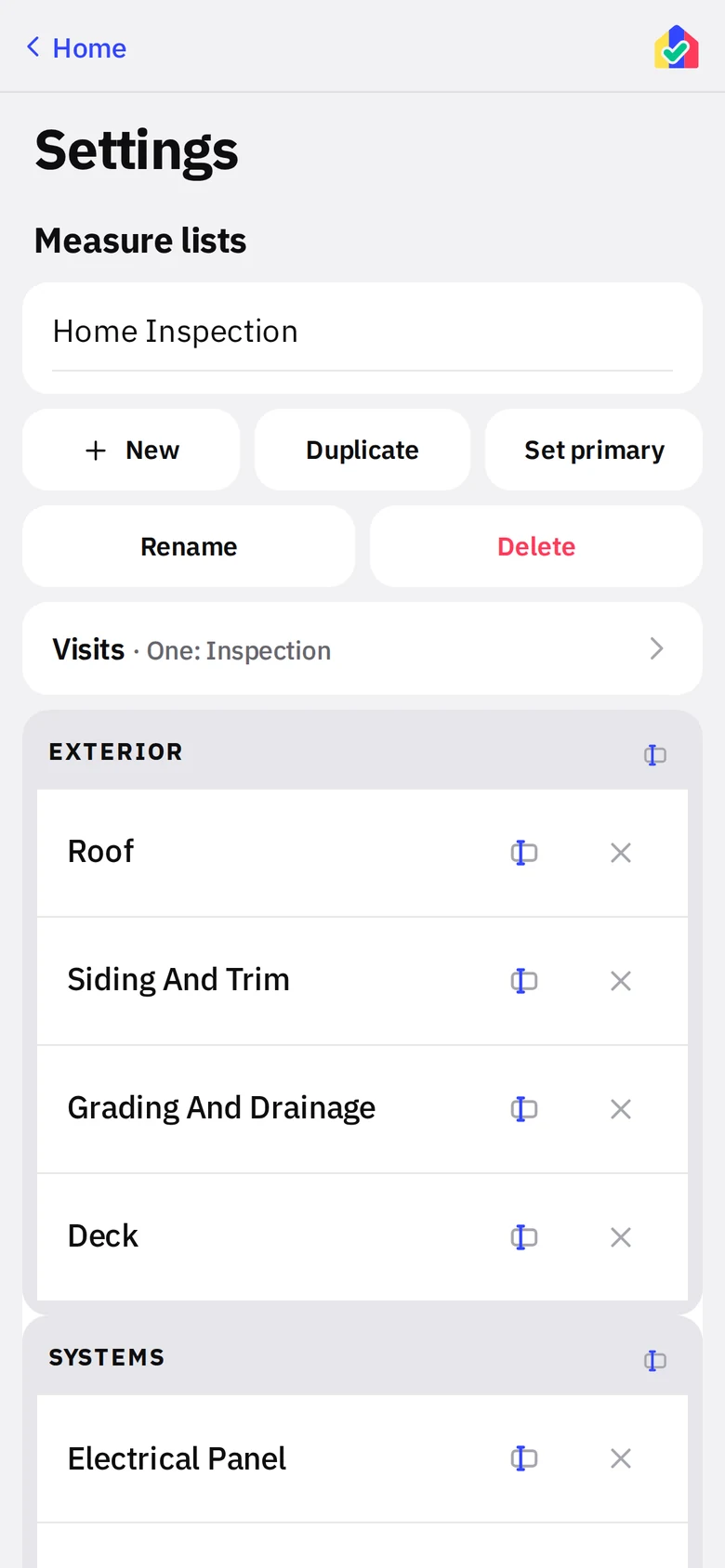
A one-visit Home Inspection list: the list name is the project type, and the visit is named by you. Two-visit lists (Before and After, Rough and Final) get two tabs here and two tiles on the project.
- 1Custom listNamed whatever you like. Appears under Project Type on New Project.
- 2Rename and DeleteCustom lists can be renamed or deleted; the built-in Default can only be reset.
- 3VisitsOne or two, with your names. Tap to rename or switch. New projects only; existing ones keep their visits.
- 4Group headingGroups become the collapsible headings on the photo wall.
New Measure List
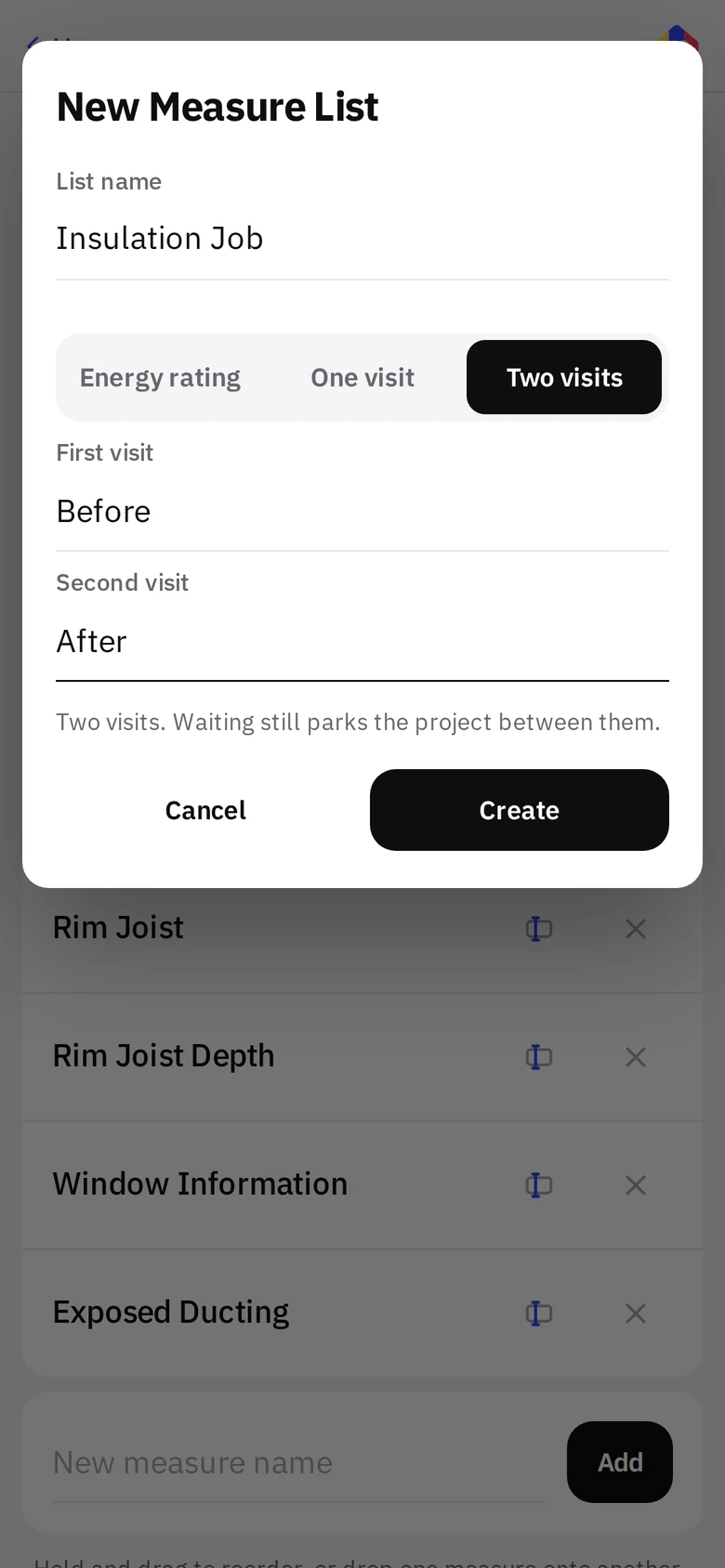
- 1KindblackEnergy rating (Pre-Drywall, Final Inspection, ENERGY STAR), One visit, or Two visits.
- 2Visit namesWhatever your trade calls them.
Reports and export
Three PDFs and two ZIPs, all built on the phone. Company name, address, phone, email, logo and rater line come from Report info in Settings and print on every page.
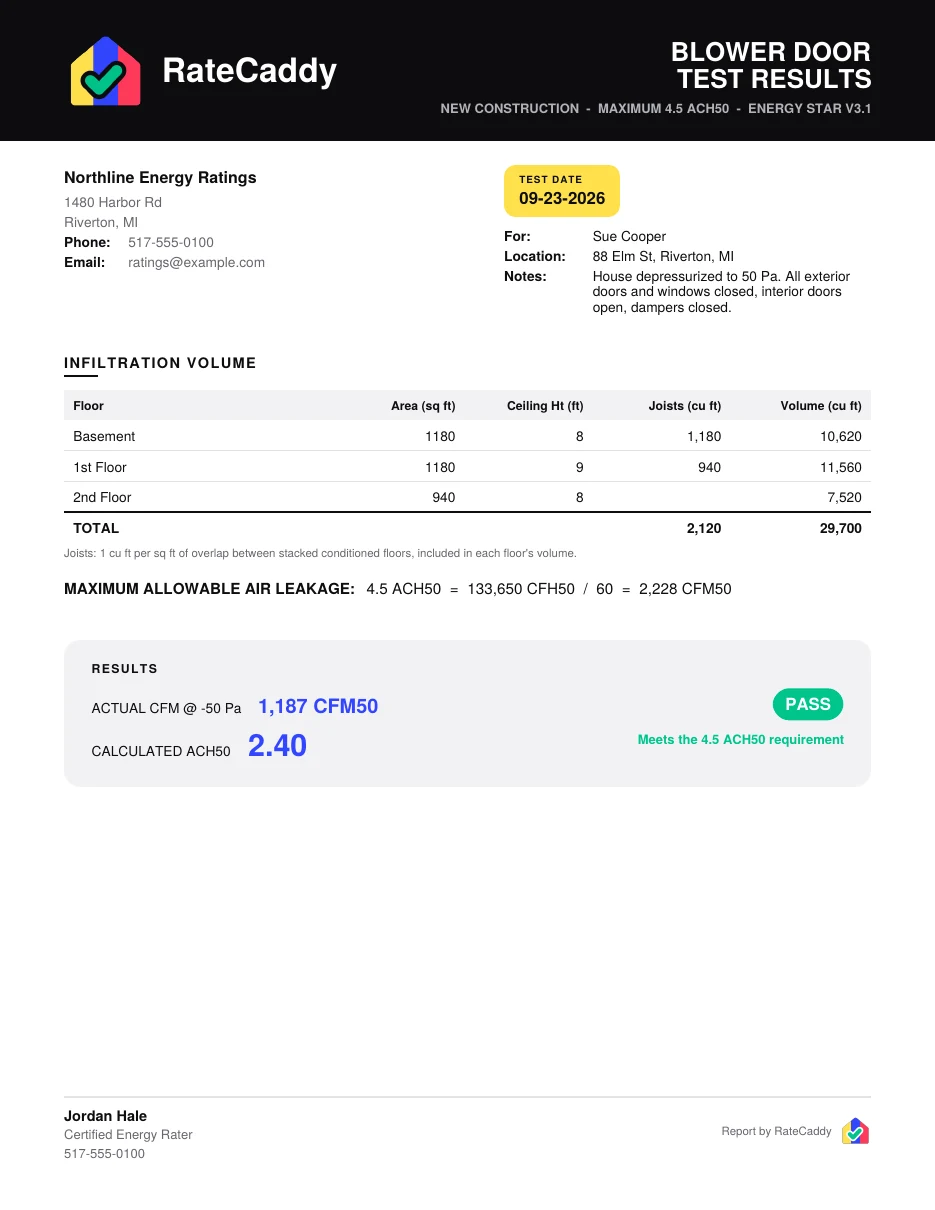 Blower Door Test ResultsTest date chip, infiltration volume table with joist space, maximum allowable leakage, actual CFM50, ACH50, solid PASS or FAIL band, manometer photo, rater block in the footer.
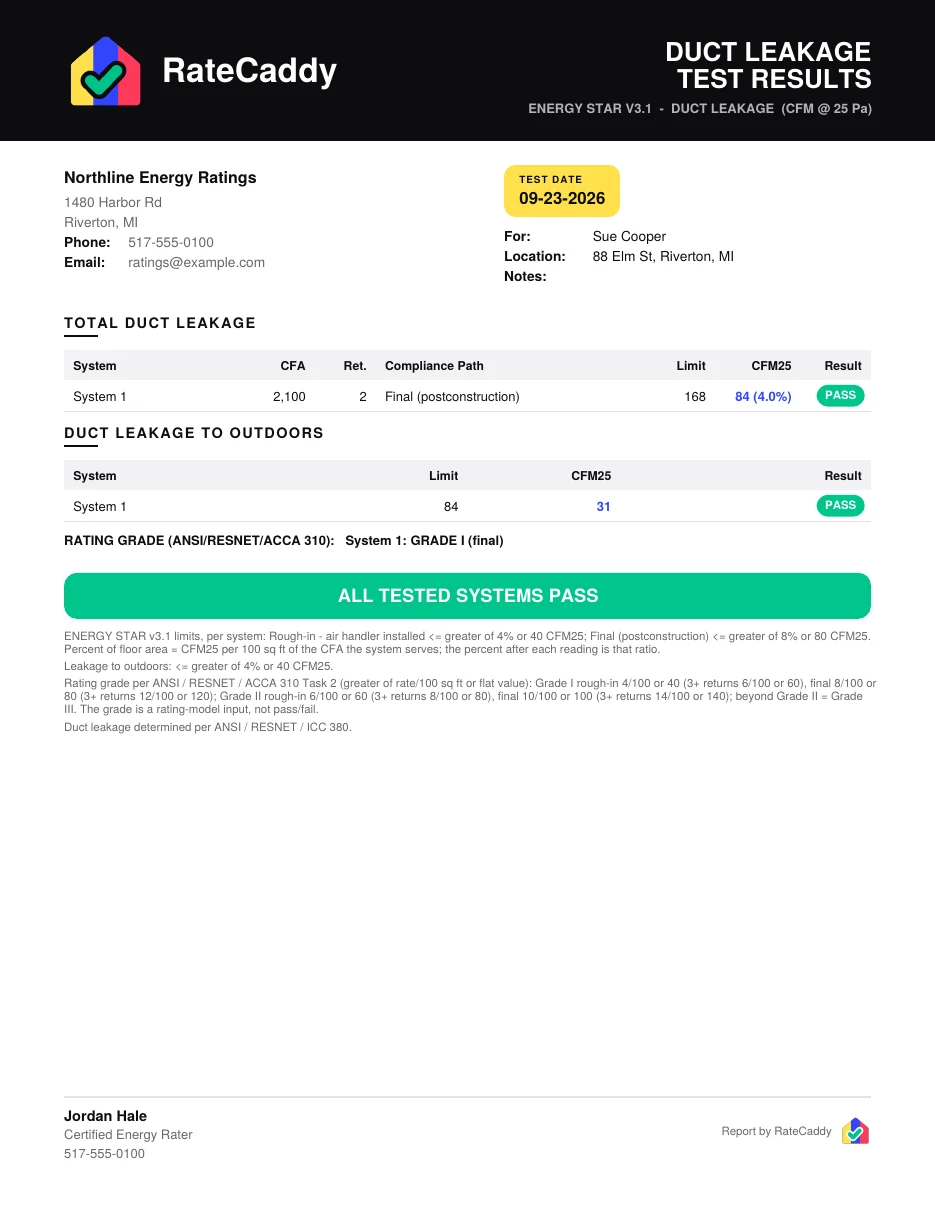 Duct Leakage Test ResultsPer system: CFA, returns, compliance path, limit, measured CFM25 and percent. Leakage to outdoors. ANSI 310 grade. The reference limits print at the bottom.
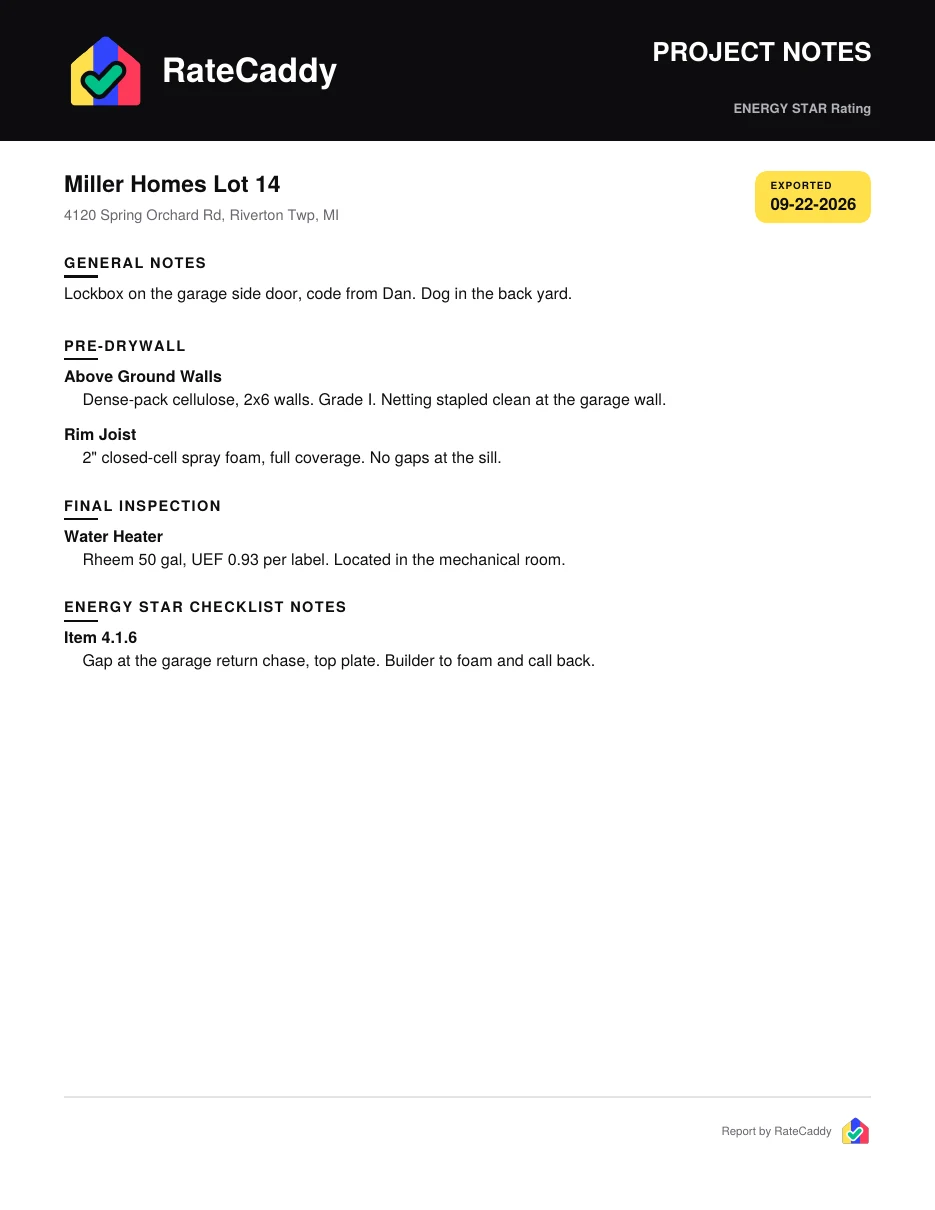 Project NotesProject notes, then each measure note under its stage, then ENERGY STAR item notes. Included in the project ZIP automatically.
Pre-Drywall/ABOVE_GROUND_WALLS_1.jpg
Pre-Drywall/RIM_JOIST_1.jpg
Final_Inspection/GAS_METER_1.jpg
Energy Star Requirements/4.1.2_1.jpg
Miller_Homes_Lot_14_Notes.pdf
Folder per stage, file per photo named by measure and numbered. Drop it straight into the provider’s job folder.
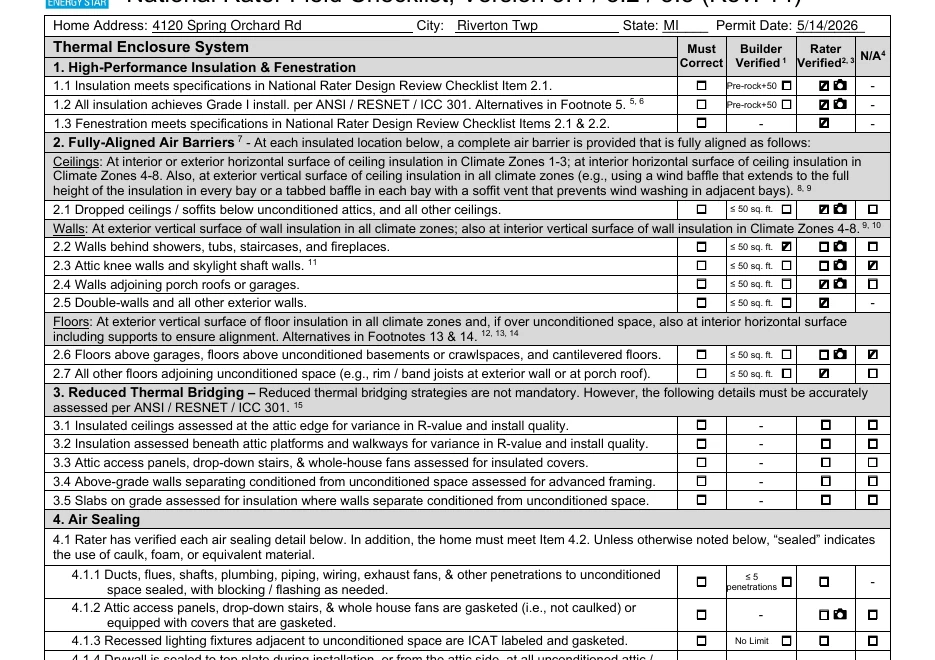 The Rater Field Checklist export fills the EPA’s own PDF form. Boxes, address, permit date and notes land in the real fields.
Backup and restore
All data lives on the phone, so the backup is the safety net. One ZIP holds everything; restoring it on another phone brings every project, photo, reading and setting back.
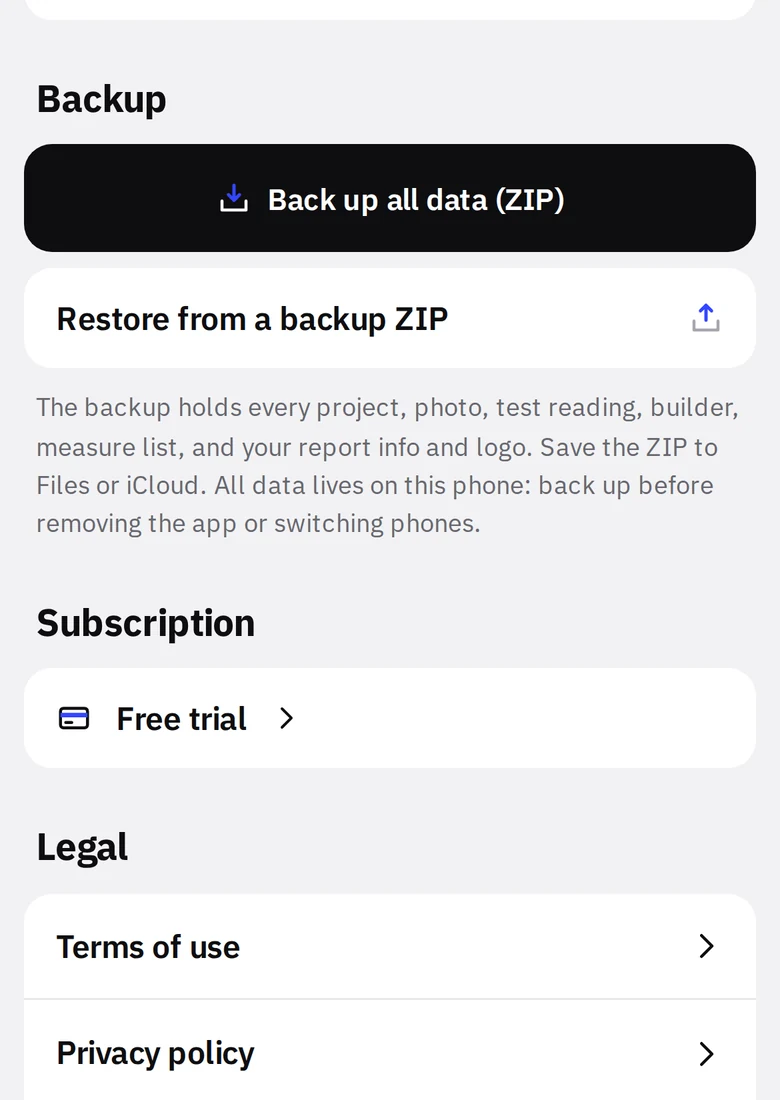
- 1Back up all datablackEvery project, photo (including test photos), test reading, builder, measure list, report info and logo in one ZIP. Save it to Files or iCloud.
- 2Restore from a backup ZIPPick the ZIP on a new phone, or after a reinstall. Restore merges by project ID, so restoring twice does not duplicate.
- 3SubscriptionYour plan and its renewal date, Manage subscription (opens your App Store or Google Play subscription settings) and Restore purchases for a new phone.
Legal and version
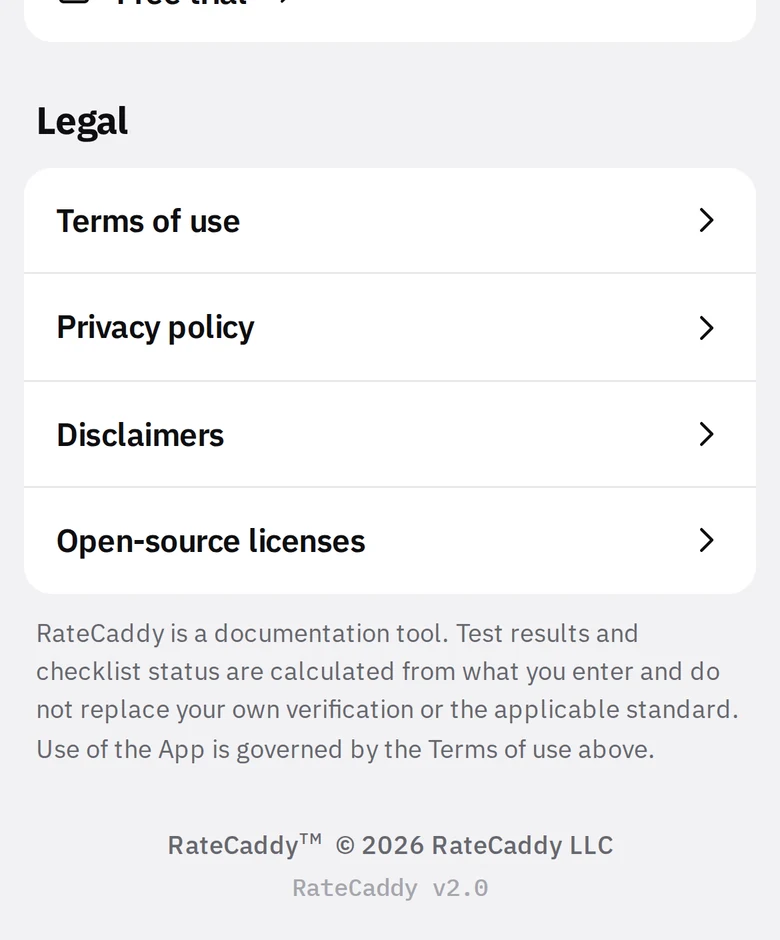
- 1Legal pagesIdentical to the terms, privacy policy, disclaimers and licenses published here.
- 2Publisher and versionRateCaddy is published by RateCaddy LLC. The version line identifies which terms apply and is the number to quote when you write to support.
Subscription
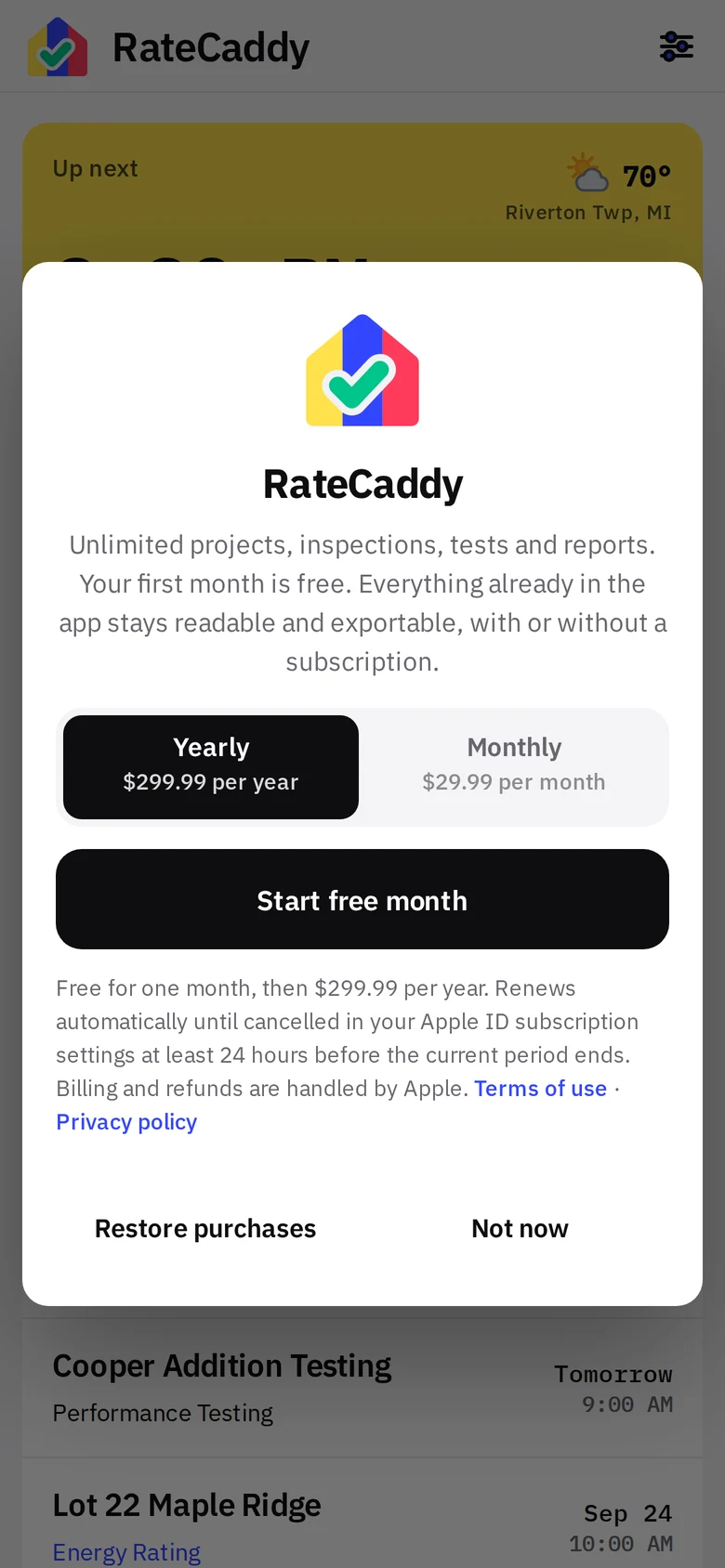
One plan, billed by the App Store or Google Play: $29.99 a month or $299.99 a year, and the first month is free for new subscribers. The only thing a subscription unlocks is creating new projects; everything already on the phone stays readable and exportable without one.
Starting the free month
- 1Yearly or MonthlyThe two plans with the store price next to each. Paying yearly saves over $59 against twelve monthly payments.
- 2Start free monthblackThe App Store or Google Play handles the purchase with your store account. The trial is the store’s own introductory offer, one per account, and the first charge comes at the end of the free month unless you cancel.
- 3Restore purchasesAlready subscribed on another phone? Restores it from your store account. Nothing to type.
Settings, Subscription
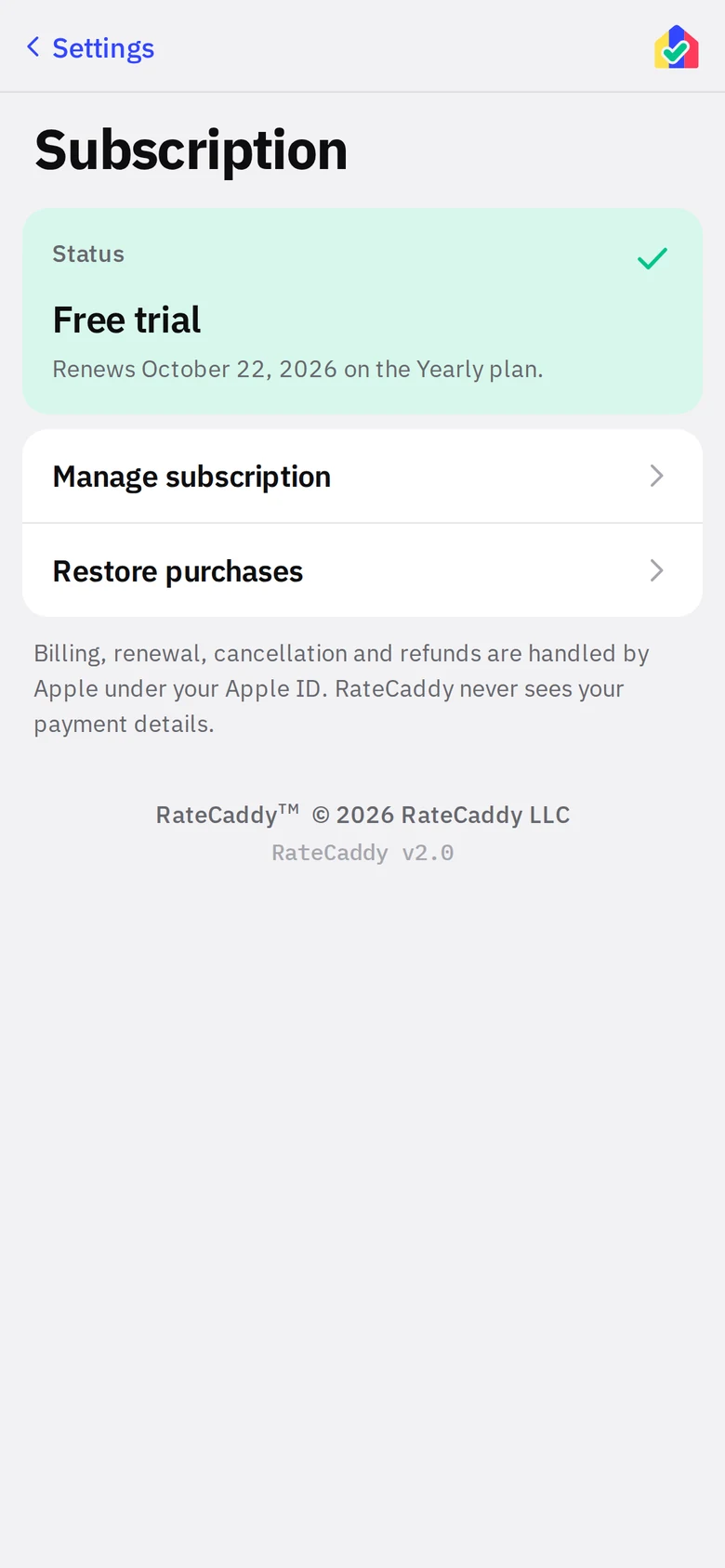
- 1StatusgreenFree trial or your plan name, with the renewal date. Green while active.
- 2Manage subscriptionOpens the subscription in your App Store or Google Play account settings, where you change plans or cancel.
- 3Restore purchasesFor a new phone or a reinstall. The store already knows you; this just asks it.
Appearance, weather, code, report info
The rest of Settings. Each one is covered in the settings reference.
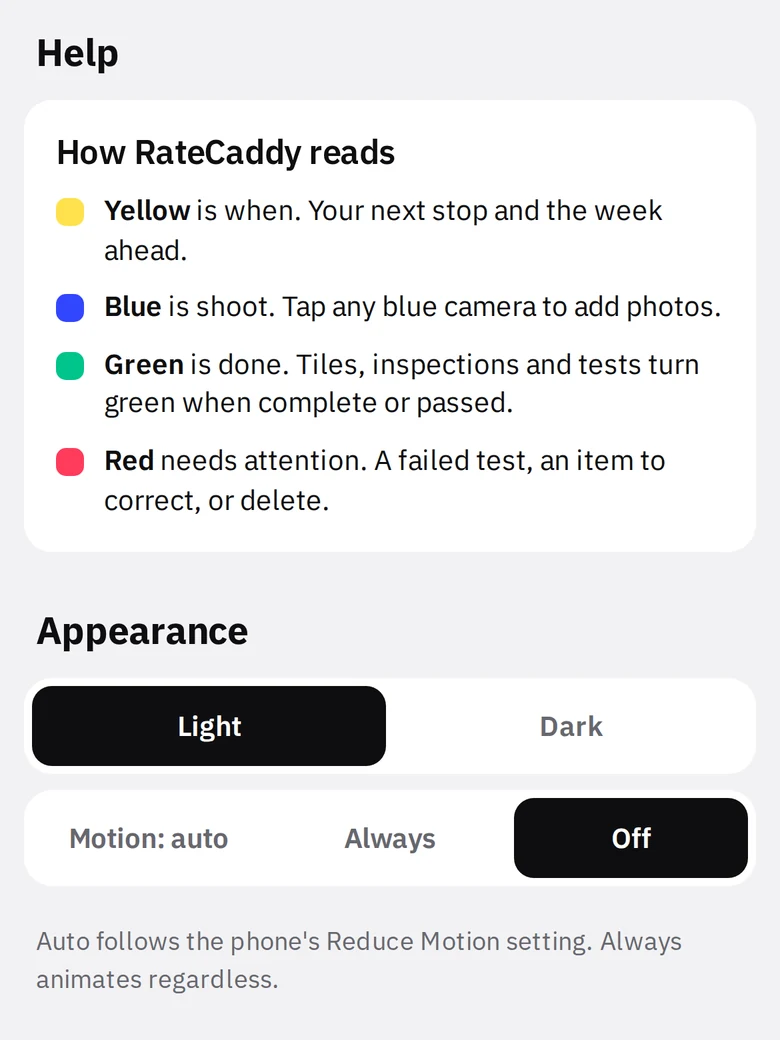
- 1How RateCaddy readsThe color key, always available here after you dismiss it on Home.
- 2Light or DarkblackThe dark theme keeps the same color grammar with deeper tints.
- 3MotionAuto follows the phone’s Reduce Motion setting. Always or Off override it.
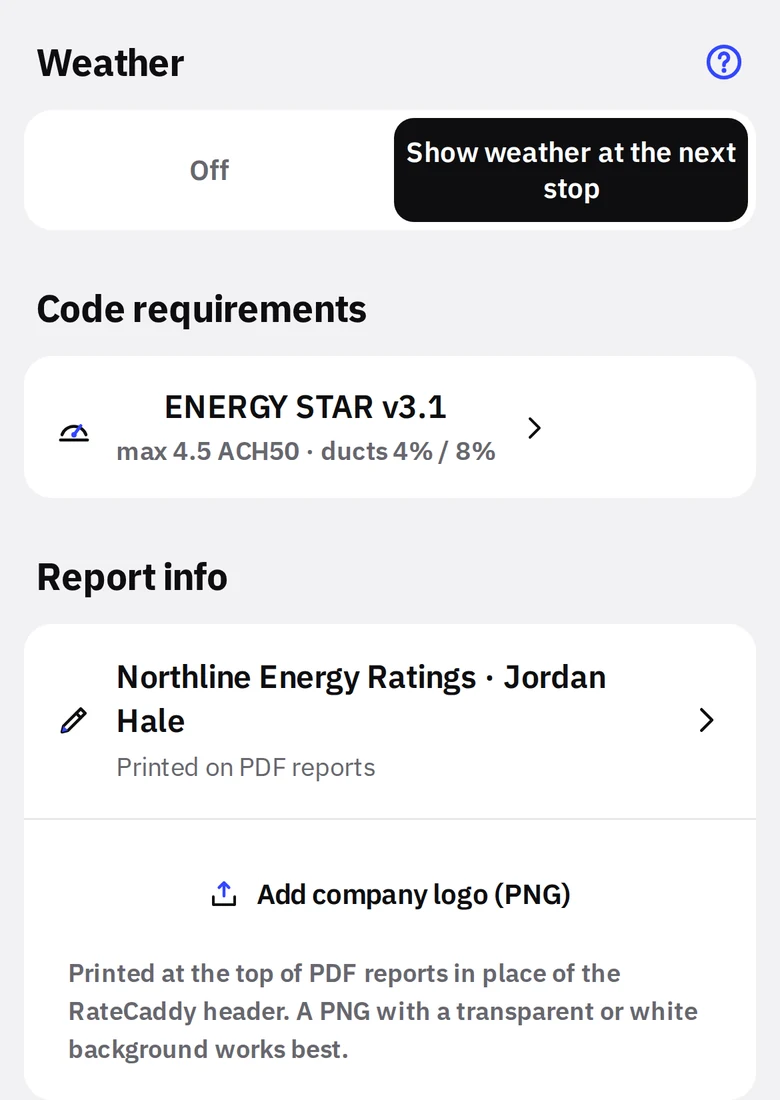
- 1Weather at the next stopOff by default. Turning it on explains what leaves the phone (the town and state, then map coordinates) and asks first.
- 2Icon keyWhat each weather icon means.
- 3Code requirementsThe default ACH50 and duct limits used by every new test. Fresh installs start on ENERGY STAR v3.1; set it to your state code once and forget it.
- 4Report infoCompany, address, phone, email, rater name, credential line and initials. Printed on every PDF.
- 5Company logoA PNG that replaces the RateCaddy header on your reports.
See it with your own projects
Your projects, your measure list, your reports. The first month is free, on the phone you already carry.