Backup and restore
All data lives on the phone. The backup ZIP is the safety net. Make one before you switch phones, before you remove the app, and on a schedule.
1. Back up
SettingsBackupBack up all data (ZIP). One file holds every project, every photo including test photos, every test reading, builders, measure lists, report info and your logo. Save it somewhere off the phone: Files on iCloud Drive, Google Drive, a laptop by AirDrop.
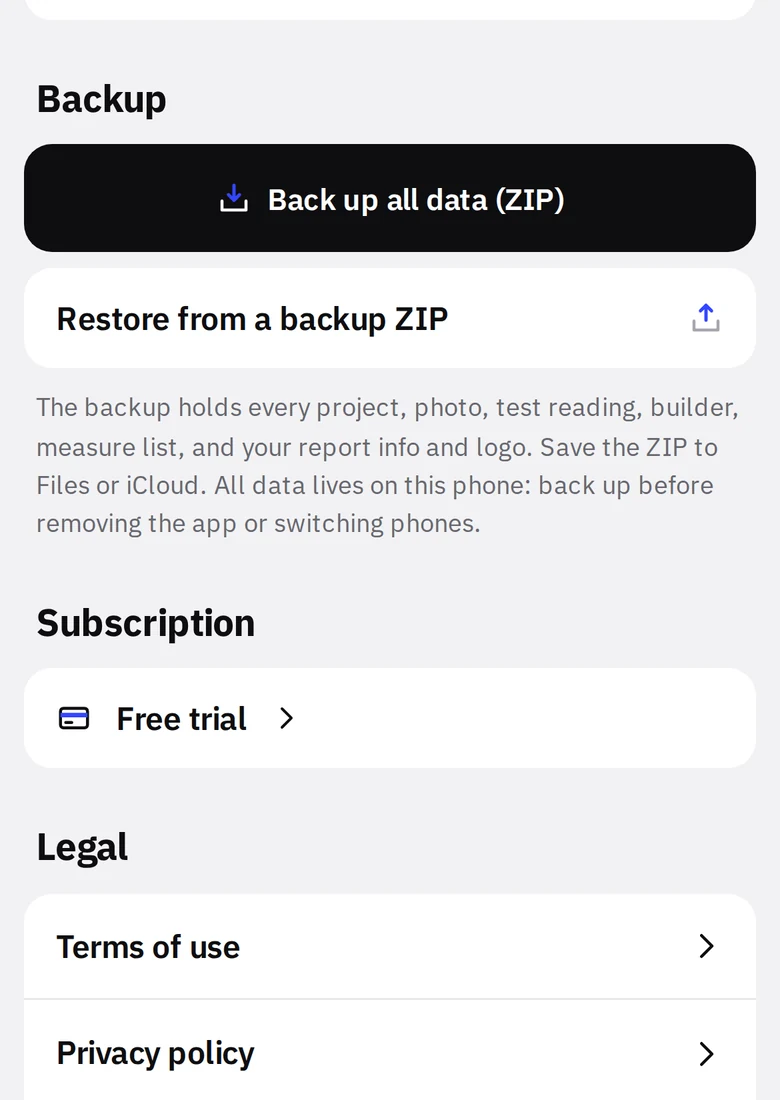
- 1Back up all datablackBuilds the ZIP and opens the share sheet.
- 2Restore from a backup ZIPPick a ZIP made by this button.
How often
At least at the end of every job that matters, and any time before you remove the app. A stolen truck or a dropped phone takes every photo for every open job with it; the backup is the only copy today.
2. Restore
- Install RateCaddy on the new phone and open it once.
- Get the backup ZIP onto that phone (Files, Drive, AirDrop).
- SettingsRestore from a backup ZIP and pick the file.
Everything in the ZIP is added. Nothing already on the phone is deleted. Projects are matched by ID, so restoring the same backup twice does not create duplicates.
3. Before you remove the app
Switching phones, or from iPhone to Android, is the same two steps: back up on the old one, restore on the new one.