Custom measure lists
The measure list is yours. Edit the default, build lists per program or per trade, group them, and save a project’s list as a preset.
1. Edit the default list
SettingsMeasure lists. The Default list is what the app ships with: six pre-drywall measures and twenty-one final measures in walking order. Pick the stage, then:
- Type a name in the Add field and tap Add to append a measure.
- Hold and drag a row to reorder.
- Drop a row onto another row to make a group; name it. Drag a group by its heading. Tap the heading to rename it.
- The rename icon edits a measure name. X removes it.
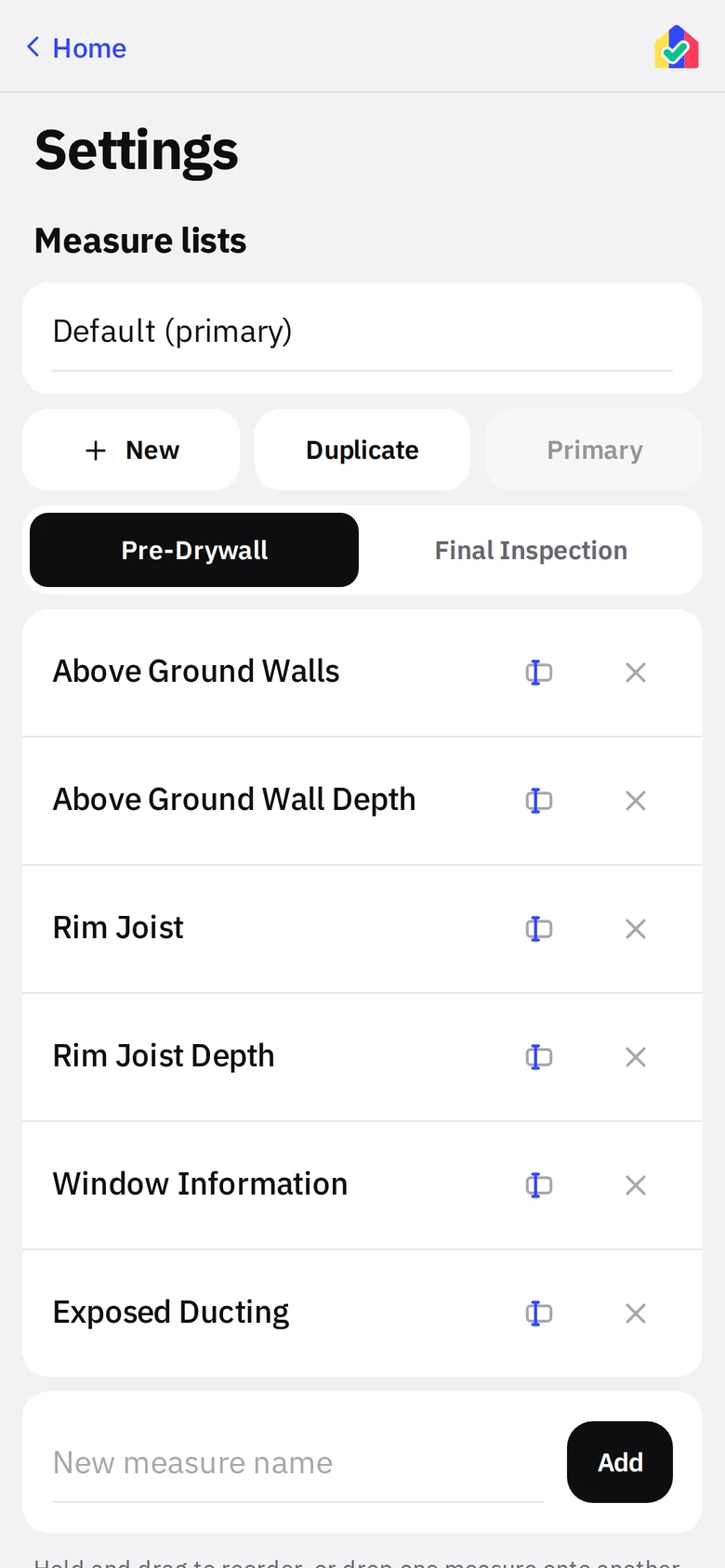
- 1List pickerDefault plus your own.
- 2StageblackEach list has both stages.
- 3RowsDrag, drop, rename, remove.
- 4AddNew measure at the bottom.
2. Make a new list
Tap New. The dialog asks for a name and what kind of list it is:
- Energy rating. Pre-Drywall and Final Inspection, the ENERGY STAR checklist, the same shape as the Default list. Use this for a second rating list, for example one per program or per builder.
- One visit. One wall of tiles and one date. Name the visit (Inspection, Survey, Walkthrough) or leave it blank and it takes the list name.
- Two visits. Two walls and two dates, named by you: Before and After, Rough and Final, Move-in and Move-out. Waiting still parks the project between them.
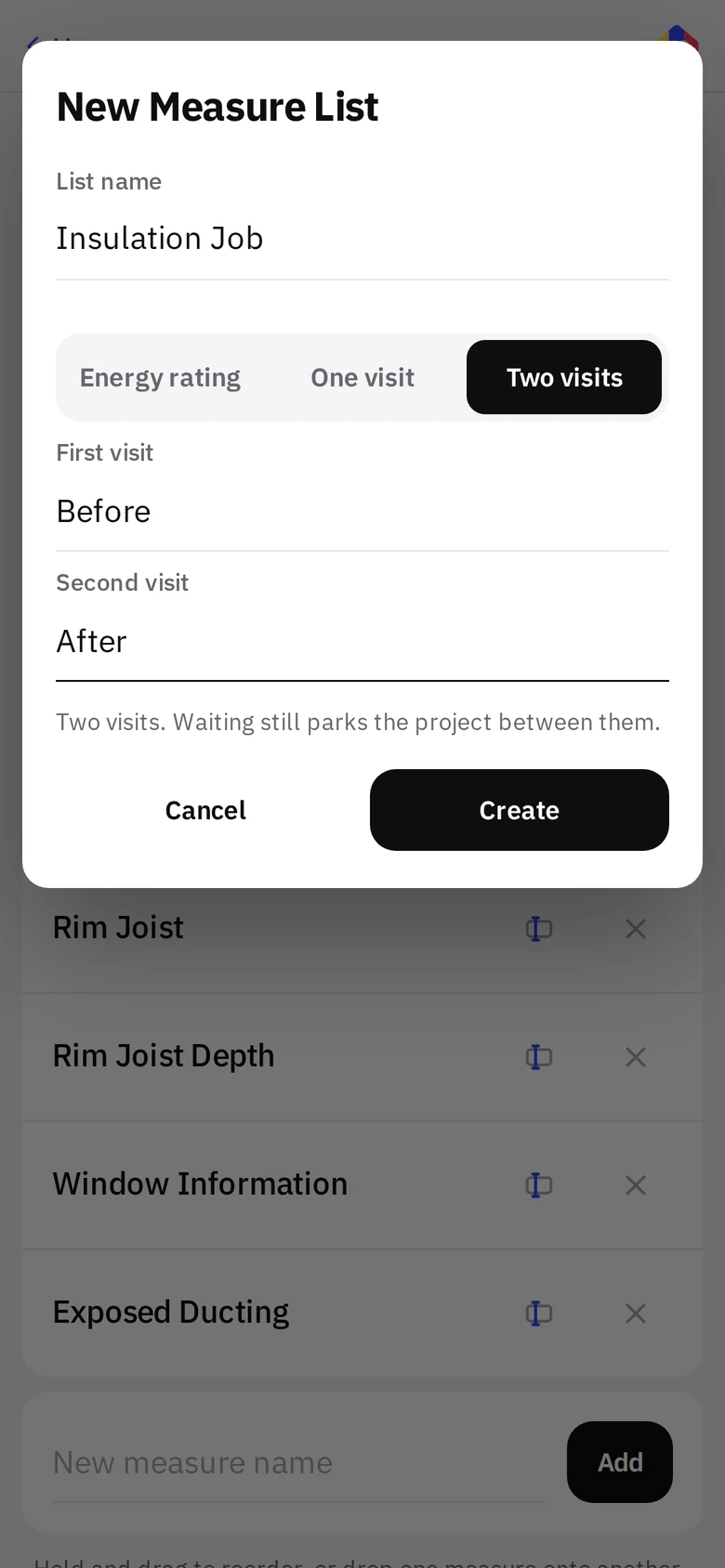
- 1List nameThis is also the project type for every project made from the list.
- 2KindblackEnergy rating, One visit or Two visits.
- 3Visit namesUp to 30 characters each, distinct, and not one of the reserved names (bd, duct, ES Checklist, Rater).
- 4What you getOne line describing the shape of the list before you create it.
Duplicate copies the selected list, kind and all. Custom lists also get Rename and Delete. Set primary makes the selected list the one preselected on New Project; a visits primary preselects itself under Project Type.
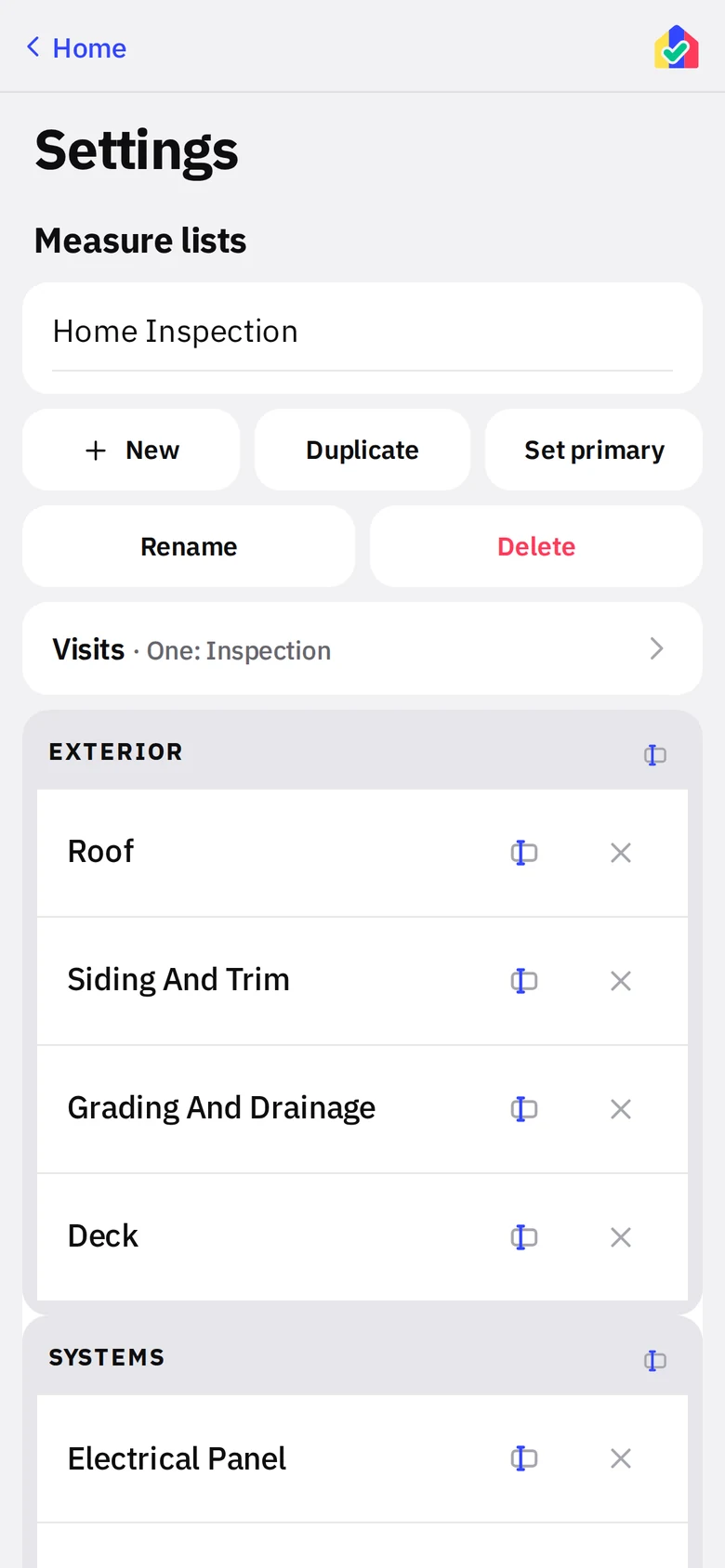
A visits list in Settings
A one-visit Home Inspection list selected. There are no stage tabs because there is one visit; a two-visit list shows two tabs named for its visits.
- 1The listCustom lists sit under Default in the picker.
- 2Rename and DeleteCustom lists only. The built-in Default can only be reset.
- 3Visits rowOne: Inspection. Tap to rename the visit or switch between one and two. Changes apply to new projects; existing projects keep their visits.
- 4Group headingGroups become the collapsible headings on the wall.
When you start a project, the list is under Project Type. Pick it and the form drops the rating-only fields and asks for one date per visit, labeled with the visit’s name.
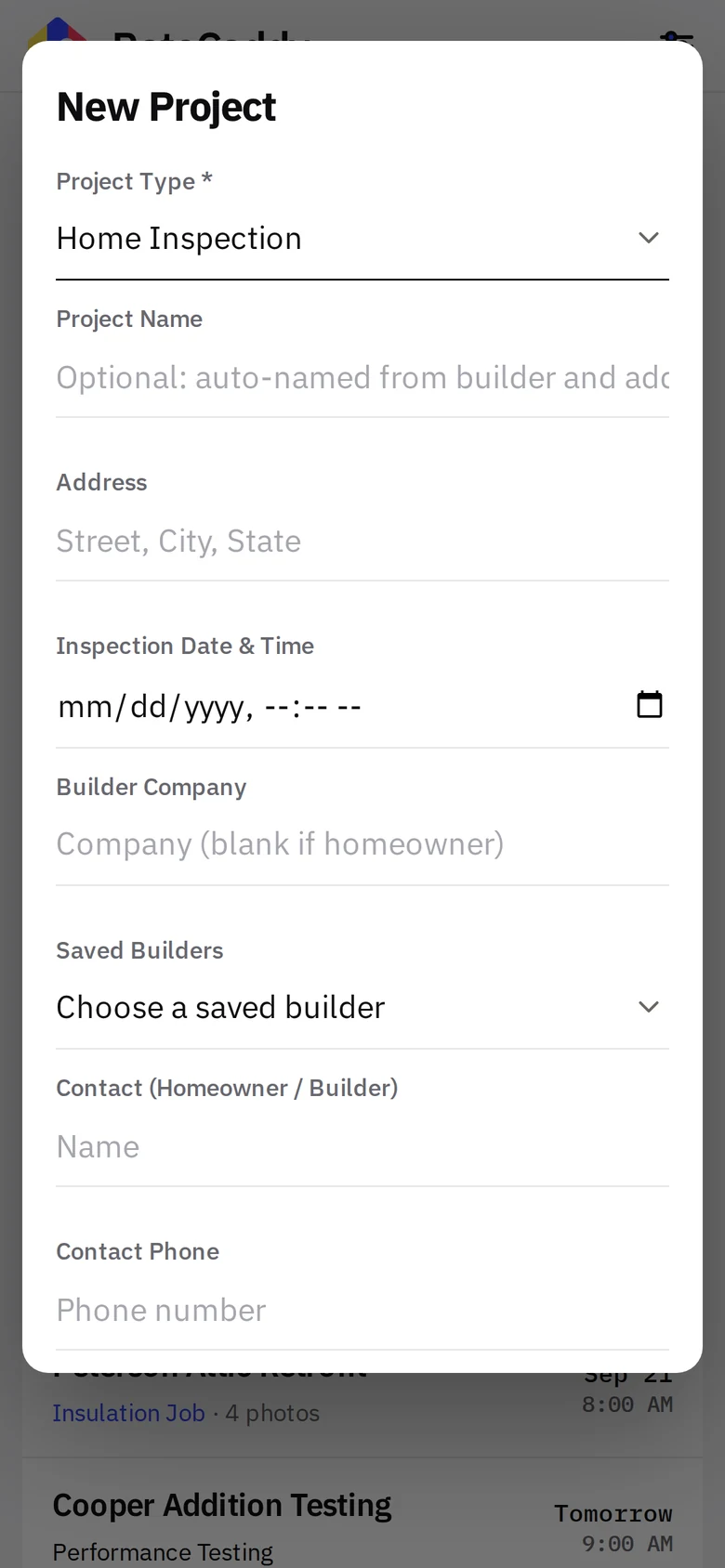
- 1Project TypeEnergy Rating, Performance Testing, then each visits list by name.
- 2One date per visityellowLabeled "Inspection Date & Time" here because the visit is named Inspection.
- 3Builder and contactSame fields as any project.
3. Save a project as a preset
Edited a project’s wall into exactly the order and groups you want? At the bottom of the wall, Save this list as a preset creates a list in Settings from it. Name it and it is available for the next project.
4. Lists for other trades
The Beyond rating page has example lists for inspectors, insulation crews, adjusters and property managers, with real screens from a one-visit inspection list and a two-visit insulation list.