Schedule, Up Next and weather
There is no calendar to maintain. Dates live on projects and tests; Home and the schedule read them.
1. Where dates come from
- Rating projects: a Pre-Drywall date and a Final Inspection date, set on the New Project form, under Edit details, or at the top of the stage wall.
- Performance Testing projects: one appointment for the project, set on the form, on the project screen when both tests are on, or at the top of the test screen for a one-off test.
Set a date in any of those places and it appears on Home (Up Next and the week strip) and on the Schedule screen.
2. Up Next
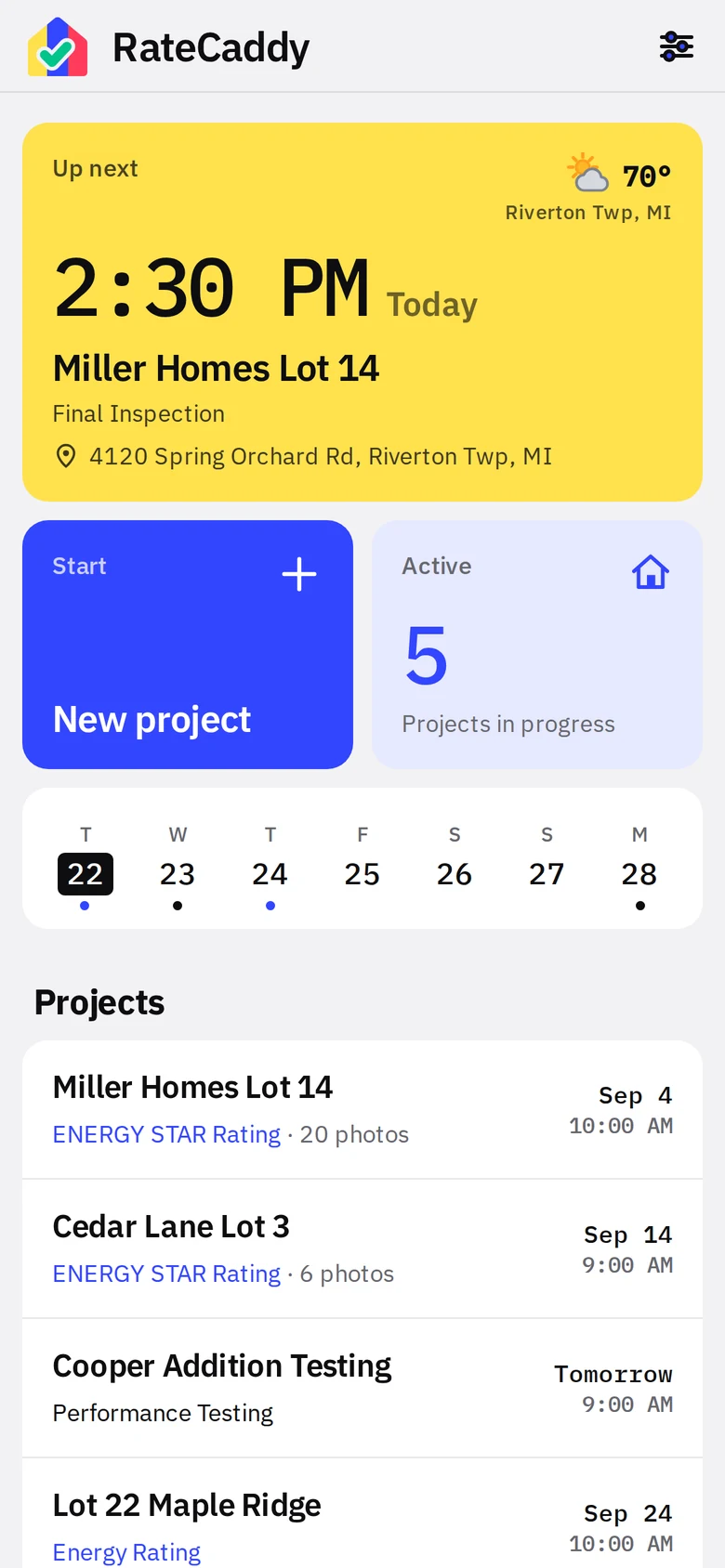
- 1Up NextyellowSoonest appointment across every active project. Time, day, project, stage or test, address. Tap to open the stage.
- 2WeatherTemperature and conditions for the appointment hour, with the town under it. Optional.
- 3Week stripyellowBlue dot: inspection. Black dot: test. Up to three per day. Tap a day to open the schedule on it.
Up Next stays on an appointment for 90 minutes after its start time, long enough to be on site, then moves on. A testing project with both tests appears once, as Performance Testing, and opens its project screen; a one-off test opens the test itself. Waiting and completed projects never appear in it.
3. The schedule screen
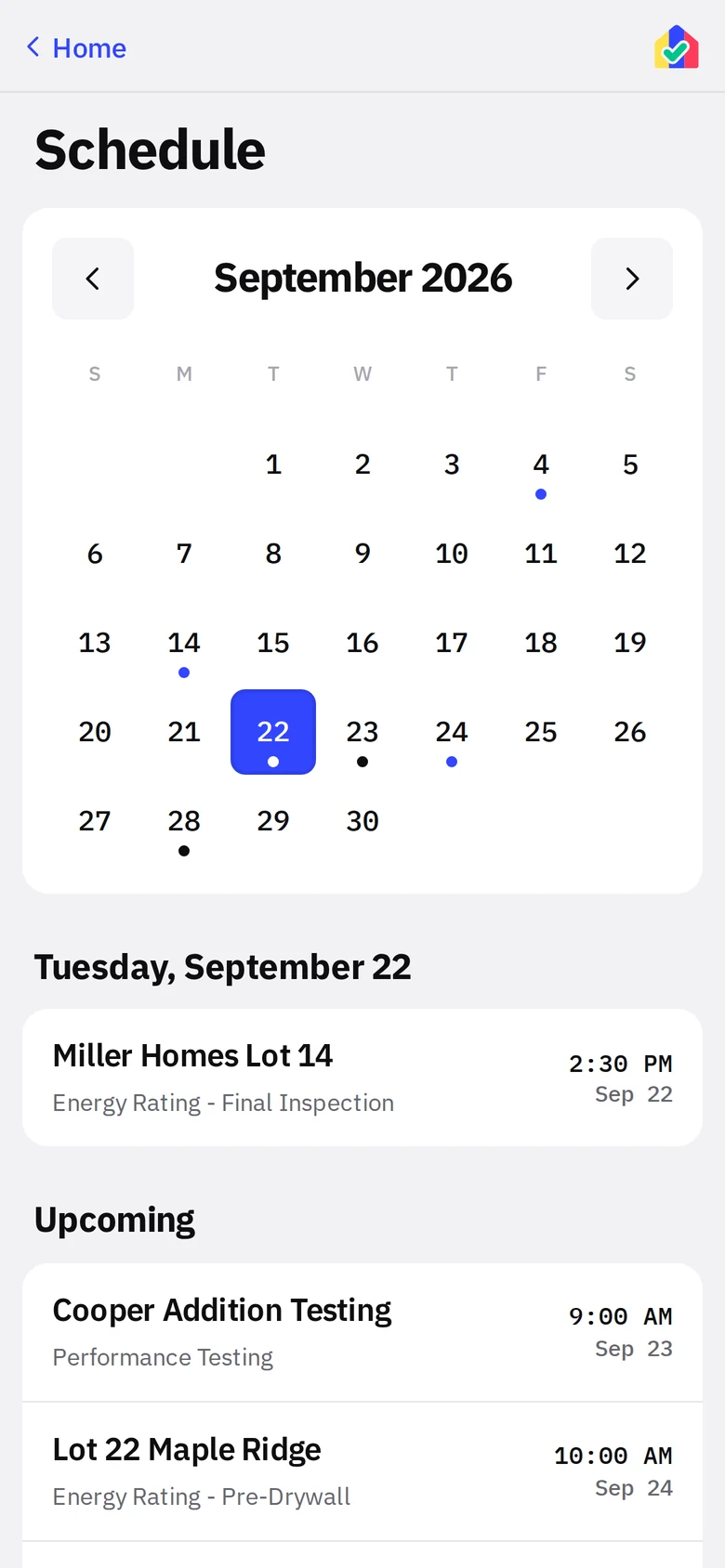
- 1Month viewyellowDots on days with work. Tap a day to list it below.
- 2That dayEach stop with its stage or test. Tap to open it.
- 3UpcomingEverything after the selected day.
4. Weather at the next stop
SettingsWeatherShow weather at the next stop. The app explains what leaves the phone and asks before turning it on. It sends the town and state from the next stop’s address (never the street) to OpenStreetMap Nominatim to get map coordinates, sends those coordinates to the National Weather Service for the hourly forecast, and shows the period covering the appointment hour. It refreshes at most once an hour and fails silently with no chip if there is no signal.
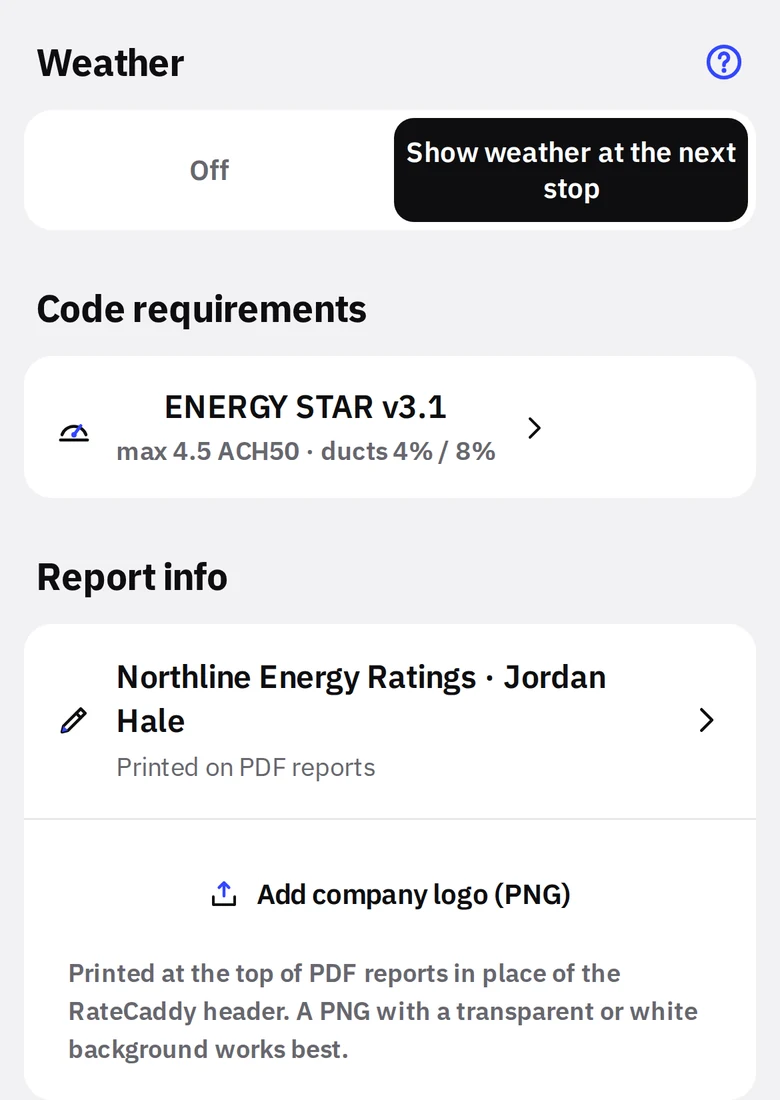
- 1Weather toggleOff by default. Turning on asks first; turning off never asks.
- 2Icon keyWhat each icon means.
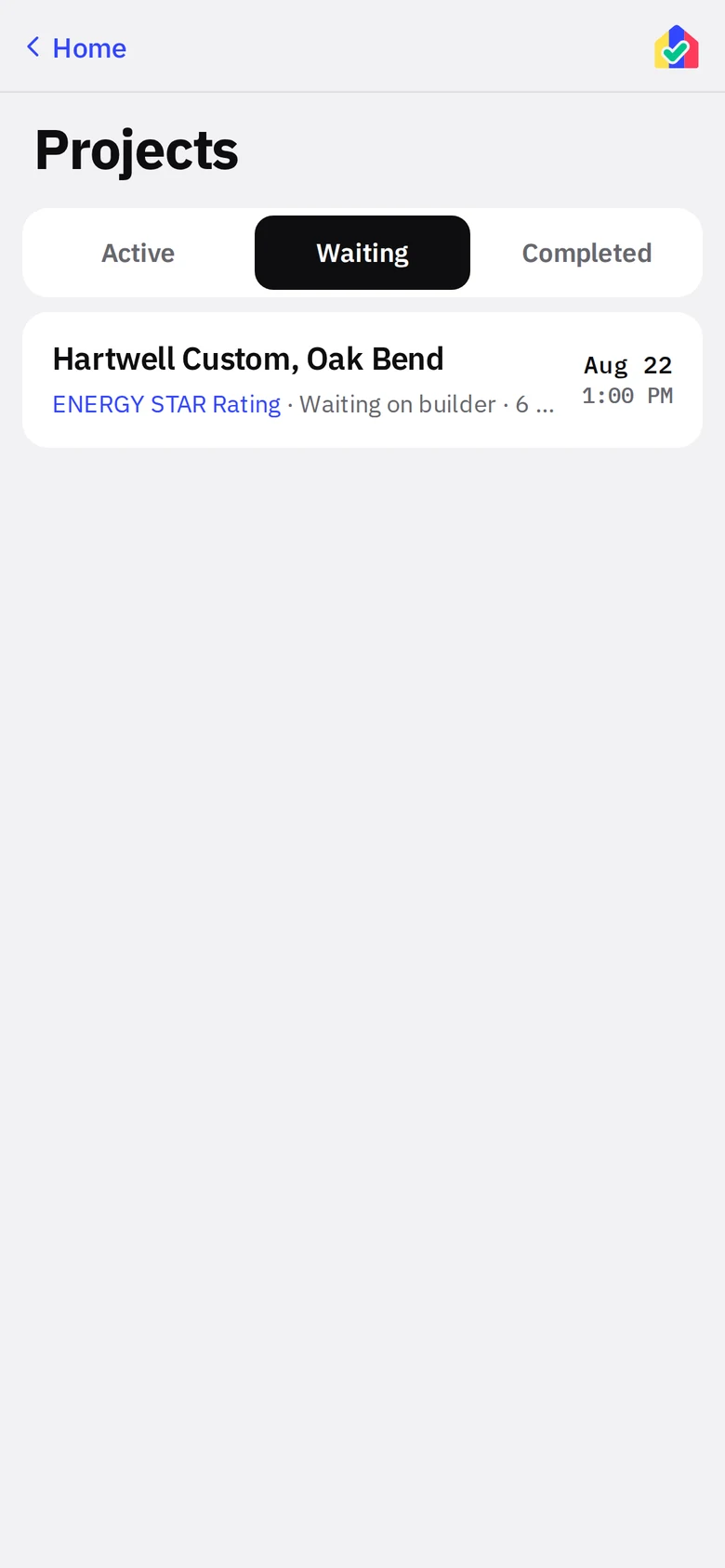
5. Waiting on the builder
After pre-drywall, a house can sit for months. On the project screen tap Set to Waiting. The project moves to the Waiting tab and leaves Up Next, the week strip and the schedule. Book or move the final visit’s date and it comes back to Active by itself. Waiting works the same on a two-visit list; on a one-visit list it parks the project until you book its date.