Getting started
Install the app, learn the four colors, and make your first project. About five minutes.
1. Install
RateCaddy is an iPhone and Android app. Get it from the App Store or Google Play and open it. There is nothing to sign up for and nothing to configure before the first project.

 Coming to the App Store and Google Play.
2. Read the colors
The first Home screen shows a card called How RateCaddy reads. It is the whole design in four lines and it is worth thirty seconds.
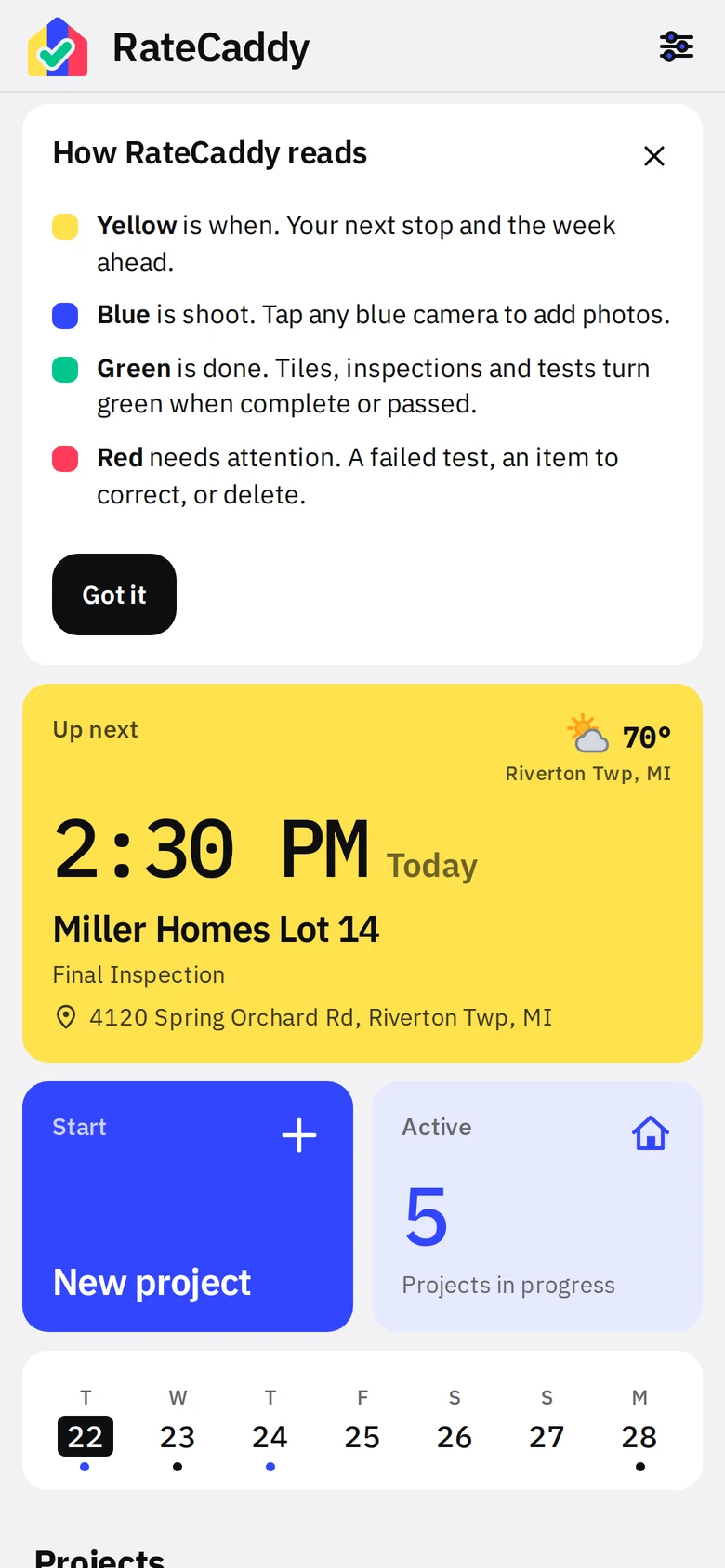
- 1How RateCaddy readsYellow is when. Blue is shoot. Green is done. Red needs attention. Black is a button or an instrument. Nothing else on any screen is colored.
- 2Got itblackDismisses the card. It is always available again under Settings, Help.
3. Make a project
Tap the blue New project tile on Home. The first time, the App Store or Google Play asks you to start the free month (yearly or monthly, nothing charged until the month ends); after that the form opens straight away. Everything else in the app works without a subscription, so you can look around first.
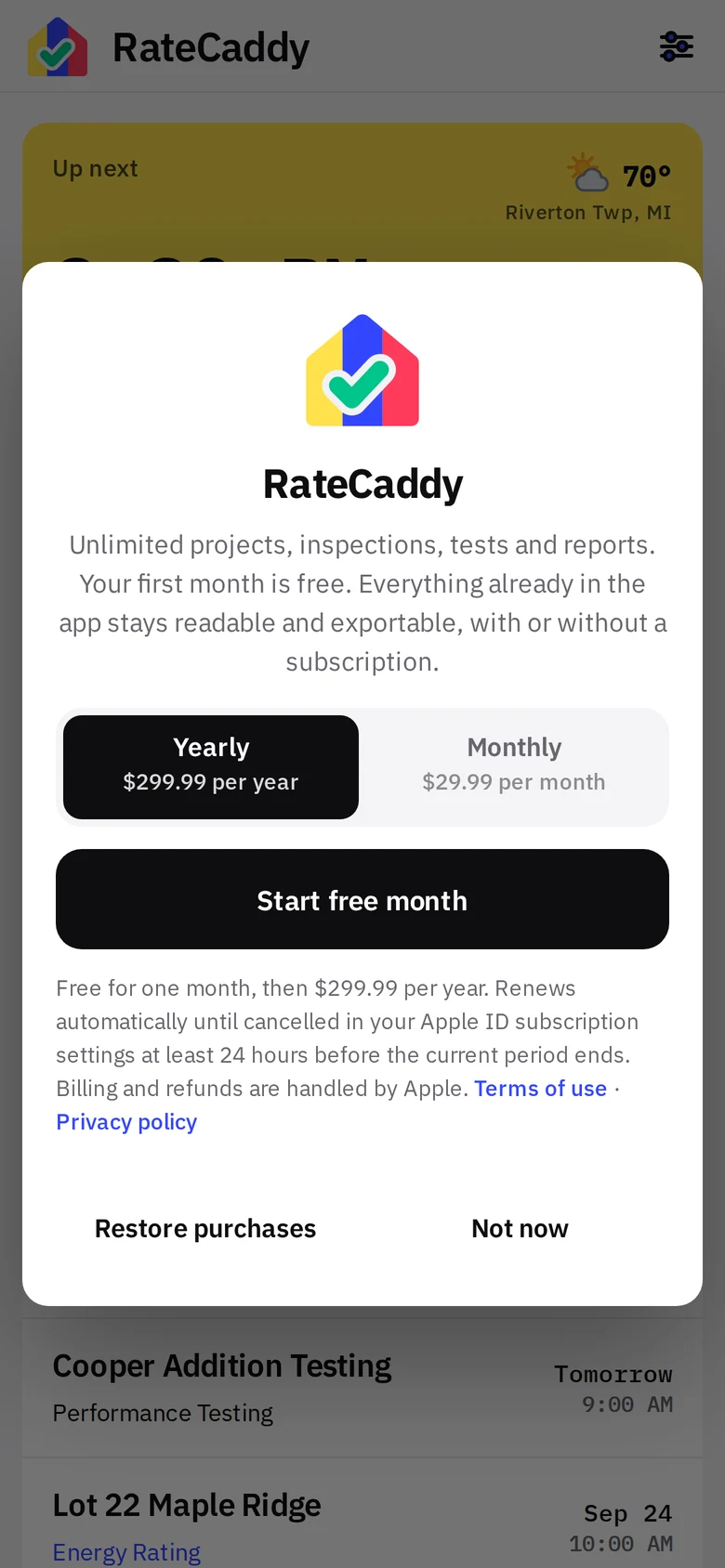
The free month
- 1Pick a planYearly ($299.99) or Monthly ($29.99). Either way the first month is free.
- 2Start free monthblackConfirms with Face ID or your store password. Change or cancel later under Settings, Subscription.
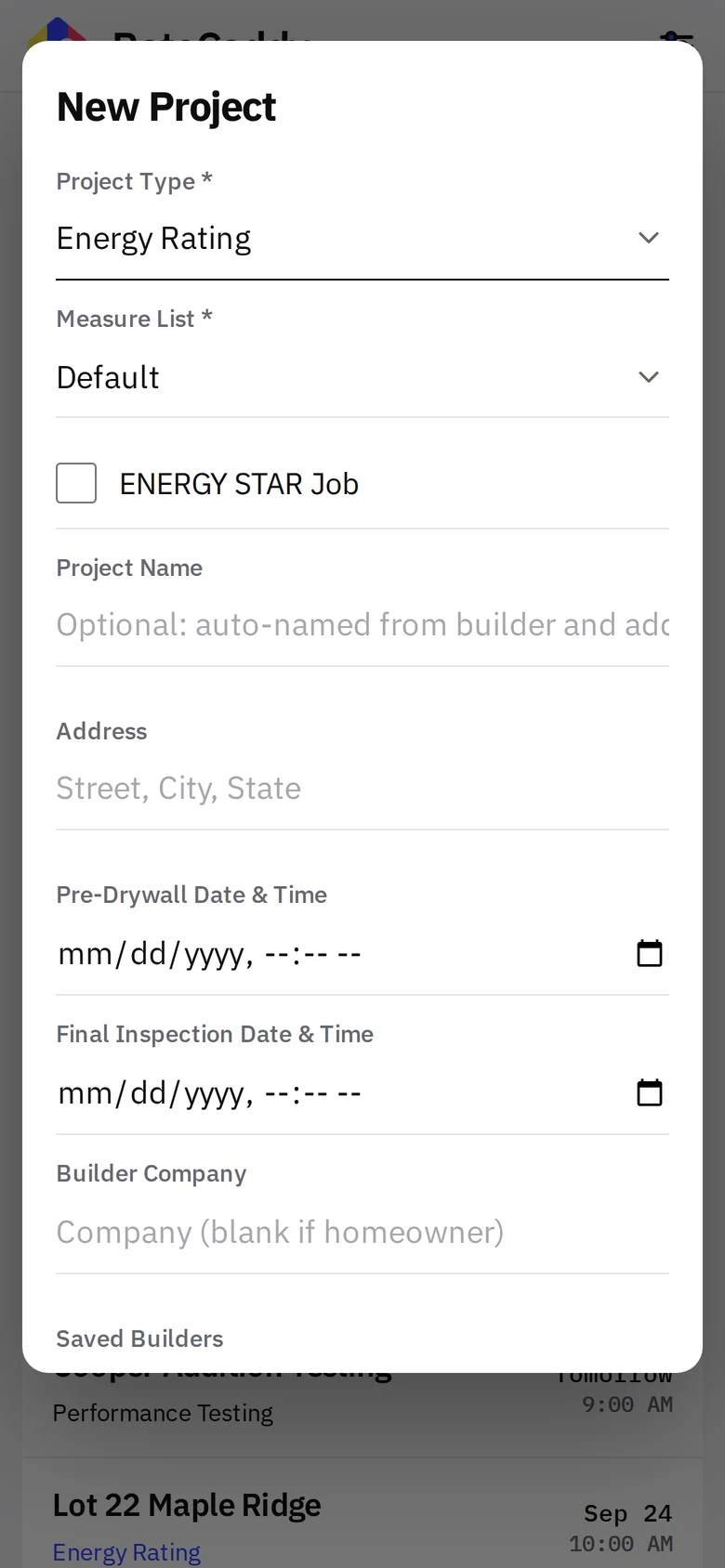
- 1Project TypeEnergy Rating for a two-stage inspection with photos. Performance Testing for a blower door or duct test on its own. Any visits list you have made (Home Inspection, say) is listed here too and becomes the project type.
- 2Measure ListWhich rating list of measures the project starts with. Default is preselected. Visits lists are picked under Project Type instead, and this menu hides.
- 3ENERGY STAR JobAdds the Rater Field Checklist to the project and the checklist photo tiles to each stage.
- 4Project NameOptional. Left blank, the name is built from the builder and address.
- 5AddressStreet, city, state. Feeds the Maps link, Up Next, and the weather town lookup.
- 6Stage datesyellowPre-Drywall and Final Inspection date and time. Either can be blank and set later from the stage screen.
- 7BuilderCompany, contact, phone, email. Pick a saved builder to fill all four. Saved automatically for next time.
Save, and you are on the project screen. Tap the Pre-Drywall card to open the photo wall. From here on, the photos tutorial takes over.
4. Know your way around Home
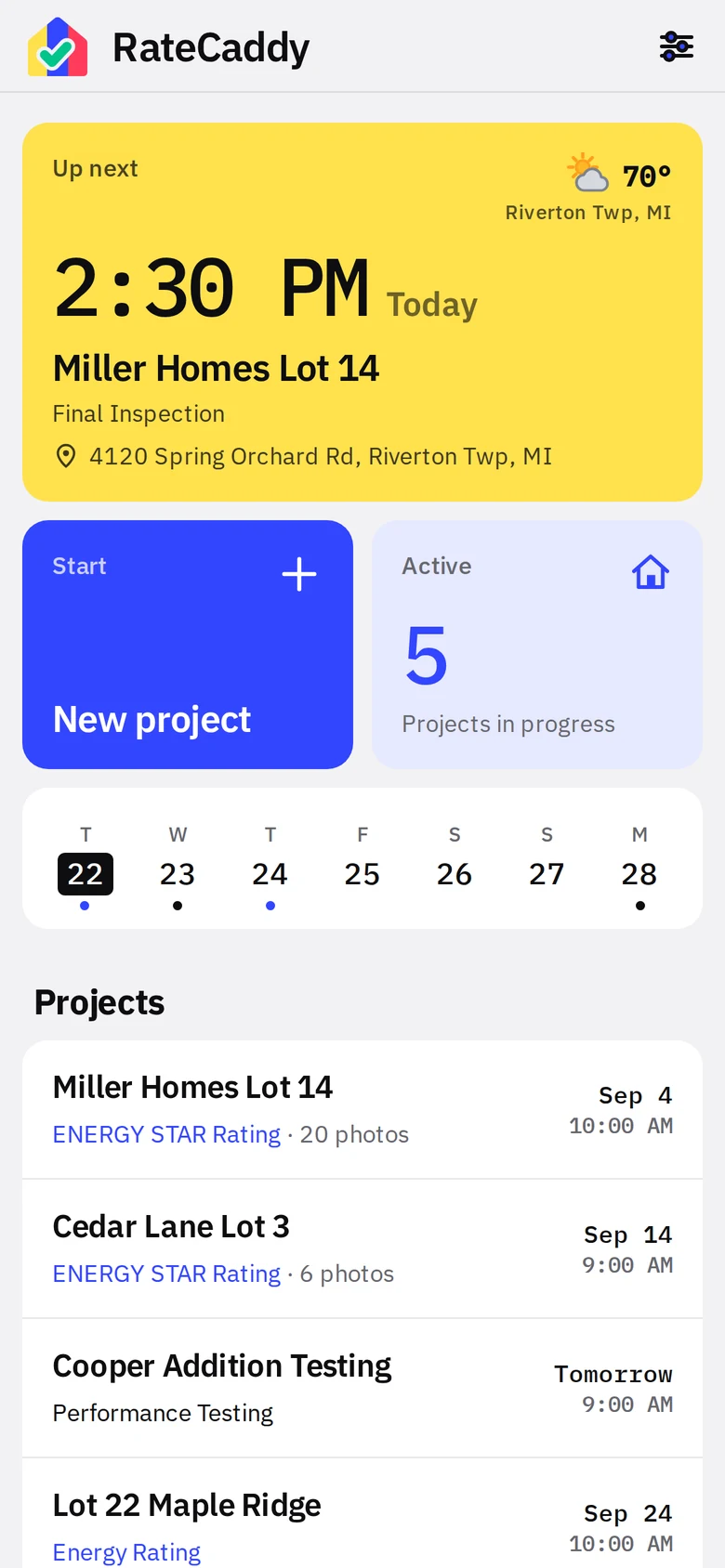
- 1Up nextyellowWhere you are going next. Tap it to open that stage.
- 2New projectblueThe form above.
- 3ActiveThe full project list with Active, Waiting and Completed tabs. A search box appears once a tab has more than five projects.
- 4Week stripyellowSeven days of dots. Tap a day for the schedule.
- 5SettingsDo this once: code requirements and report info. See the settings reference.