Photos by measure
The core of the app: shoot from a tile and the photo is filed. Groups, notes, the viewer, reordering and renaming.
1. The wall
Open a project and tap a stage card. Each measure is a tile. Tiles are in list order, which is walking order if the list was written that way (the default lists are).
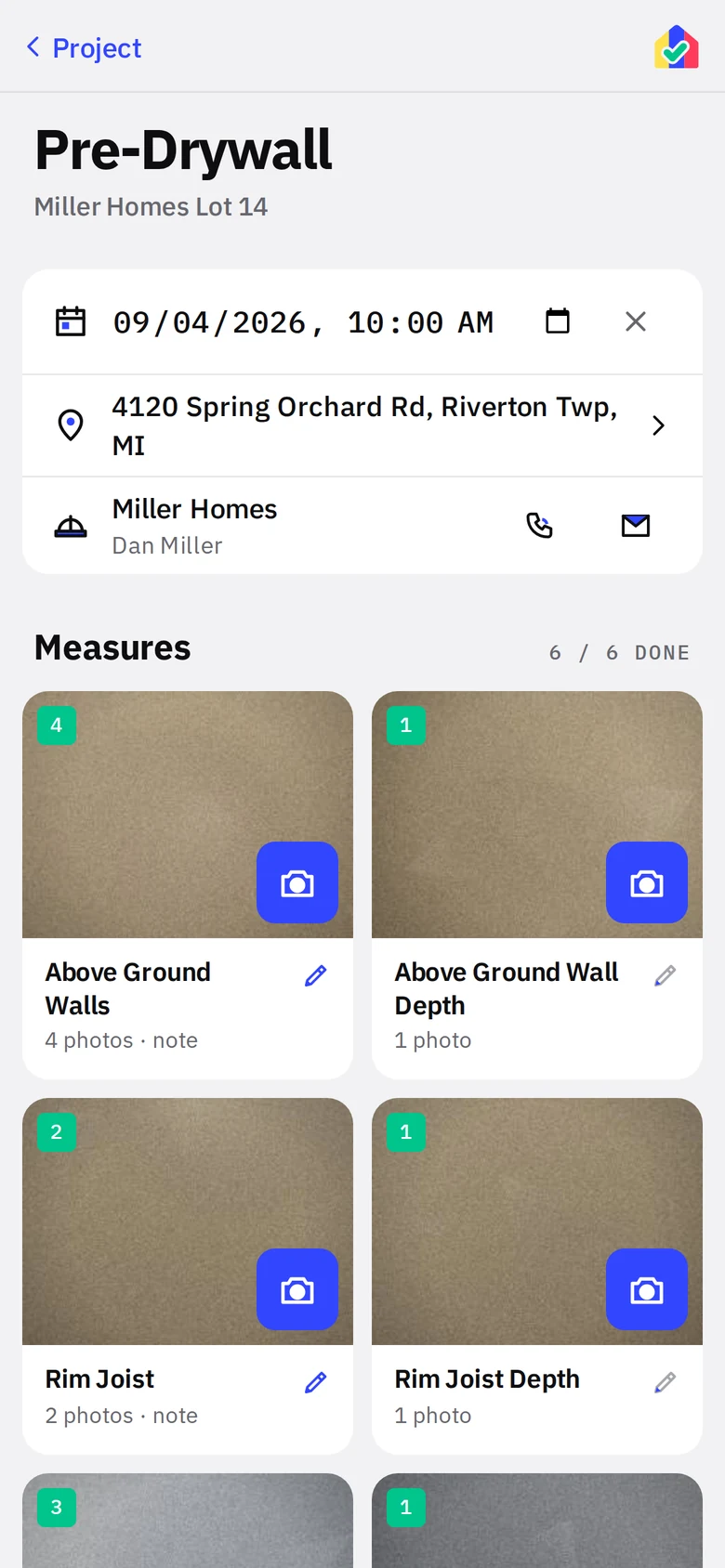
- 1Set the timeyellowIf the appointment was not on the form, set it here. It goes straight to Home and the schedule.
- 2Directions and the builderMaps, call and email are on the wall, so Up Next can drop you here and you still have everything.
- 3ShootblueOpens the camera into this measure. Take the photo, confirm, and you are back on the wall with the count up by one.
- 4Open the measureTap the tile itself to see all its photos, add a note, or add from the library.
Taking several photos of one measure
Tap the same camera again. The badge counts up. Exterior elevations usually get four; a rim joist gets two. The export numbers them in the order taken.
2. Groups
Long lists get headings. The default Final Inspection list is grouped into Exterior, Kitchen, Attic and Testing. On a project you can regroup freely.
- Hold a tile and drag it to move it.
- Drop a tile onto another tile to make a group of the two. Name it when asked.
- Drag a tile out of a group to remove it from the group.
- The rename icon next to a heading renames the group; tap the heading itself to collapse it. The pencil on a tile is the measure’s note.
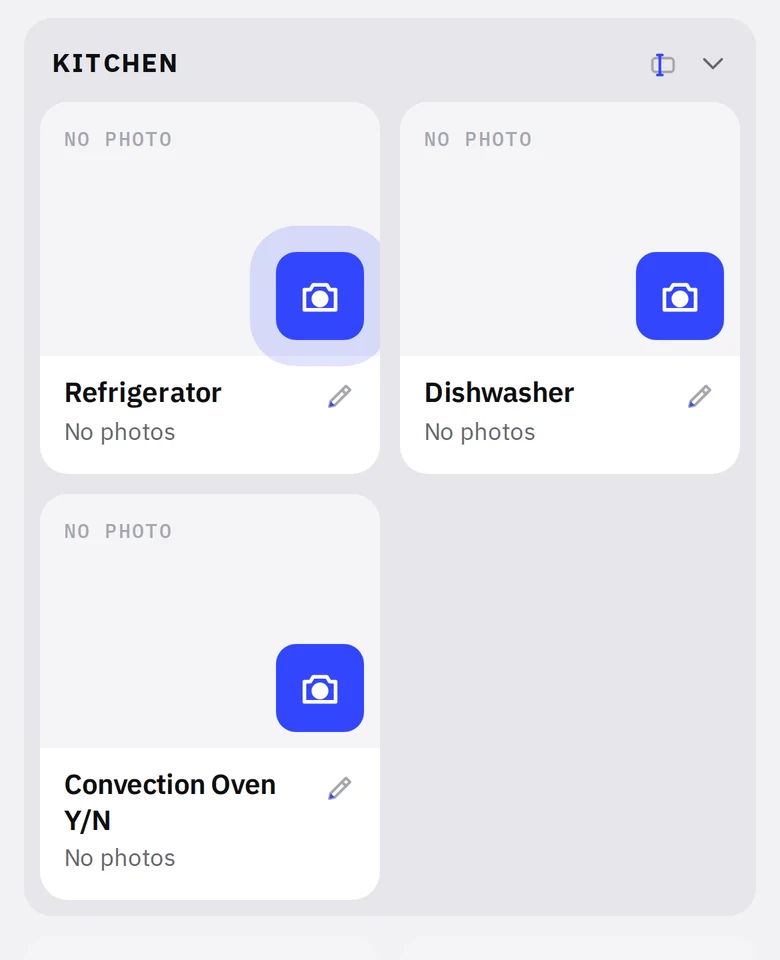
- 1Group headingCaps, with rename and collapse controls at the right.
- 2Next to shootbluePulsing ring. This is the next thing to photograph.
3. Notes
Tap a tile to open the measure. The note field is one per measure per stage. Write what the picture cannot say: "Dense-pack cellulose, 2x6 walls, Grade I." Notes print in the notes PDF, which is included in every project export.
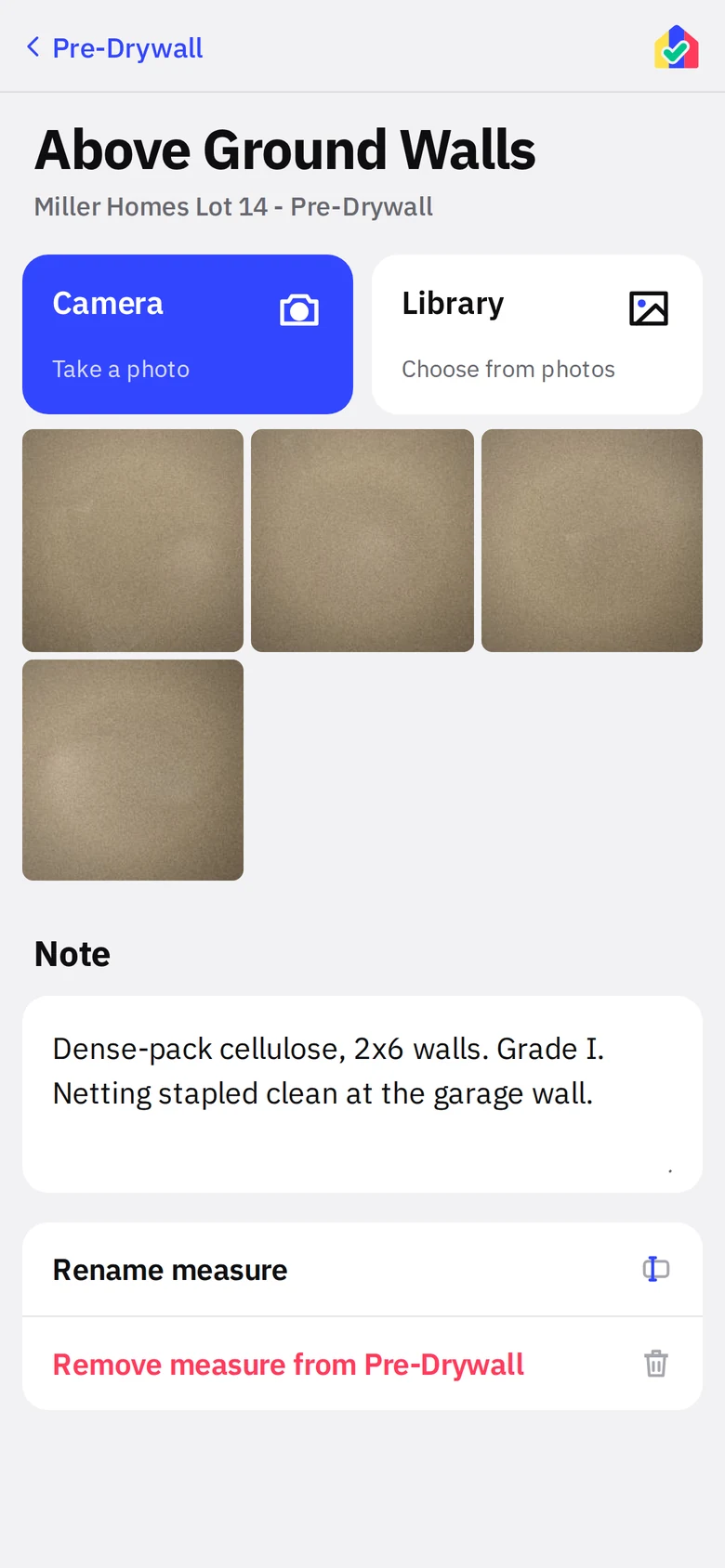
- 1CamerablueSame as the wall camera.
- 2LibraryAdd from the phone’s photo library.
- 3NoteSaves as you type. No button.
4. Review in the viewer
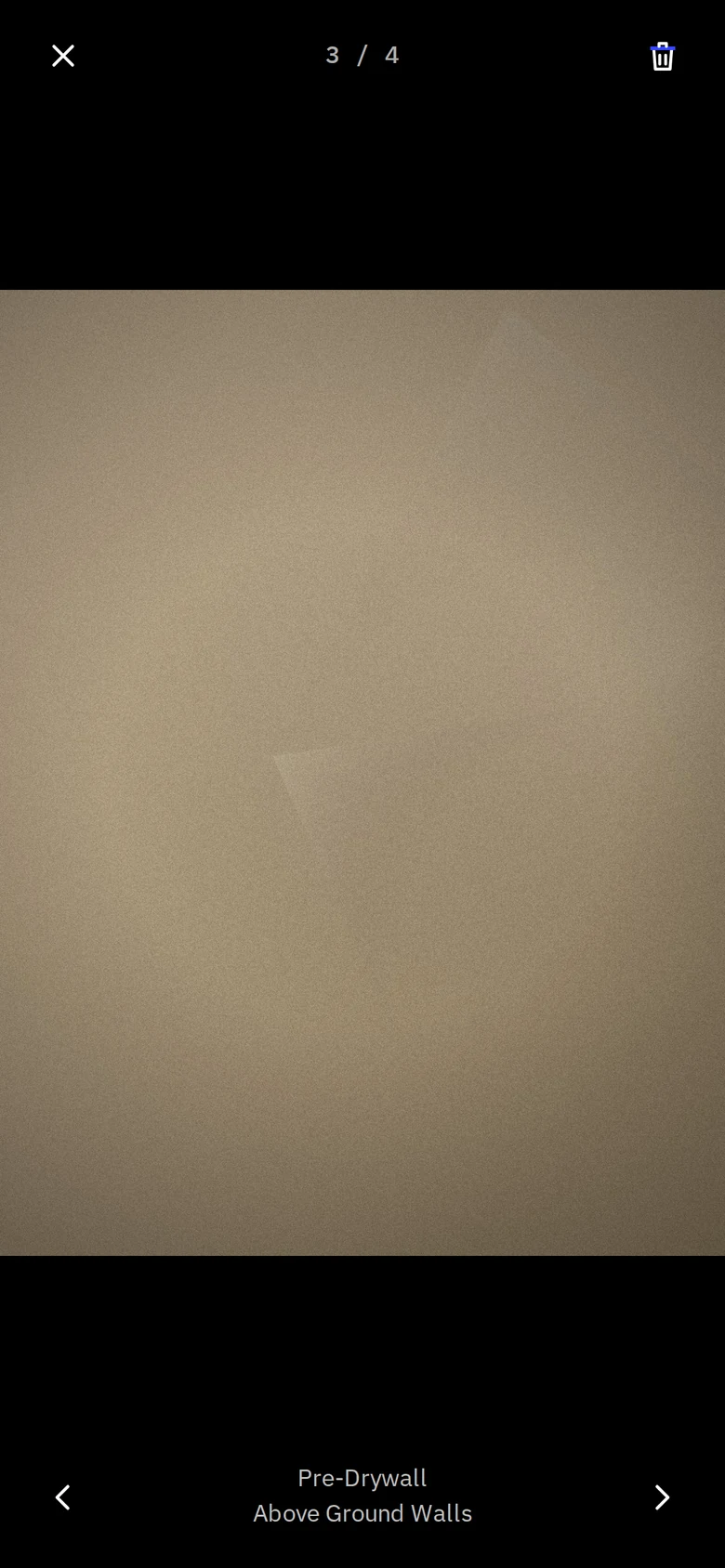
Tap any photo. Pinch to zoom up to 5x, drag to pan, double-tap to jump in and out. Arrows at the bottom step through the measure. The trash top-right deletes after asking.
5. Rename, add, remove
- Rename measure on the measure screen renames it for this project. Photos and the note follow the new name. Names cannot contain # and cannot repeat within a stage.
- Add measure at the bottom of the wall adds one to this project only.
- Remove measure from this stage on the measure screen takes it off after asking. Its photos are removed with it, so export first if they matter.
- Save this list as a preset at the bottom of the wall turns the project’s current list, groups and all, into a reusable list in Settings.